FAQ - 디버깅을 위한 주요 ADB Command 활용법
ADB 설치 방법
설치 방법 펼쳐보기
Mac
Homebrew를 사용하여 adb를 설치합니다. 직접 설치할 경우 환경변수 셋업을 직접 해줘야 합니다.
- 먼저 Homebrew를 설치합니다.
/bin/bash -c "$(curl -fsSL https://raw.githubusercontent.com/Homebrew/install/HEAD/install.sh)"
- Homebrew를 사용하여 adb를 설치합니다.
brew install android-platform-tools
- 설치가 잘 되었는지 확인합니다.
adb version
만약 adb 명령어가 실행할 수 있는 프로그램으로 인식되지 않을 경우, 환경변수 PATH에 adb 경로가 반영되어 있는지 확인합니다.
Windows
- Chocolatey나 Winget을 사용하여 adb를 설치합니다.
choco install adb
winget install Google.AndroidSDKPlatformTools
- 설치가 잘 되었는지 확인합니다.
adb version
리눅스
Ubuntu / Debian 계열
- apt 패키지 매니저를 사용하여 adb를 설치합니다.
sudo apt update
sudo apt install android-tools-adb android-tools-fastboot
- 설치가 잘 되었는지 확인합니다.
adb version
ADB 연결 및 기기 확인
연결된 기기 정보를 조회하는 명령어입니다. 식별번호가 나타나지 않는다면, 연결을 재시도 하시기 바랍니다.
adb devices
List of devices attached
emulator-5554	device
CCS 연결
기기에서 서비스에 연결하는 명령어입니다. 이 명령어를 활용하여 블루링크, 제네시스 커넥티드 카서비스 등에 연결합니다.
아래 명령어는 CCS 차량에서 서비스 연결을 위해 필요한 명령어입니다. Devbox와 Pleos Connect Emulator에서는 지원되지 않으므로, 해당 환경에서는 실행하거나 CCS 연결 테스트에 사용하지 마시기 바랍니다.
adb shell settings put secure hmg_is_ccs_account_linked 1
adb shell settings put global hmg_provisioning_status 4
화면 캡처
기기에 연결하여 스크립샷을 캡처하는 명령어입니다. 캡처된 스크린샷은 [screen_현재시간.png] 이름으로 바탕화면에 저장됩니다.
adb exec-out screencap -p > ~/Desktop/screen_$(date +"%Y%m%d_%H%M%S").png
화면 영상 촬영
기기에 연결된 상태에서 화면의 영상을 촬영하는 명령어입니다.
- 영상 포맷 프로그램 설치
brew install ffmpeg
- 촬영 시작
adb exec-out screenrecord --output-format=h264 - > ~/Desktop/screen.h264
-
촬영 종료 녹화 프로세스가 진행 중인 동일 터미널에서
Ctrl+C를 눌러 촬영을 종료합니다. -
포맷 영상 파일 포맷을 변환합니다. 여기서는 h.264 파일을 mp4 컨테이너로 재패키징 합니다. 여기까지 하면 PC에서 캡처한 영상을 볼 수 있습니다.
ffmpeg -framerate 60 -i ~/Desktop/screen.h264 -c copy ~/Desktop/screen_$(date +"%Y%m%d_%H%M%S").mp4
앱 설치 / 실행 / 종료 / 삭제
앱 설치
앱을 설치하는 명령어입니다.
adb install -d -r [apk파일주소]
# adb install -d -r app-my-signed.apk
옵션 설명
-d : 다운그레이드 허용
-r : 로컬 정보 제거
위 방법이 실패한 경우 다음 명령어로 앱 설치를 시도할 수 있습니다.
adb push [apk파일주소] /data/local/tmp/
adb shell pm install -d -r /data/local/tmp/[apk파일이름]

# adb push app-my-signed.apk /data/local/tmp/
# adb shell pm install -d -r /data/local/tmp/app-my-signed.apk
앱 실행
앱 패키지를 찾아서 앱을 실행시키는 방법을 설명합니다.
adb shell pm list packages | grep [패키지명 중 일부내용]
# adb shell pm list packages | grep radioline
adb shell monkey -p [패키지이름] -c android.intent.category.LAUNCHER 1
# adb shell monkey -p ai.umos.appmarket -c android.intent.category.LAUNCHER 1
- Global Navigation Bar(GNB)에서 앱을 선택하여 실행하는 것과 유사한 동작으로 실행됩니다.
adb shell am start -n [패키지이름]/[Activity 경로]
# adb shell am start -n com.radioline.android.radioline/.MainActivity
앱 삭제
앱을 삭제하는 명령어입니다. 앱을 삭제한 후에 패키지를 비워줍니다.
adb uninstall [패키지이름]
# adb uninstall ai.umos.appmarket
adb shell pm clear [패키지이름]
# adb shell pm clear ai.umos.appmarket
앱 종료
앱을 강제 종료하는 명령어입니다.
adb shell am force-stop [패키지이름]
# adb shell am force-stop ai.umos.appmarket
UI 텍스트 입력
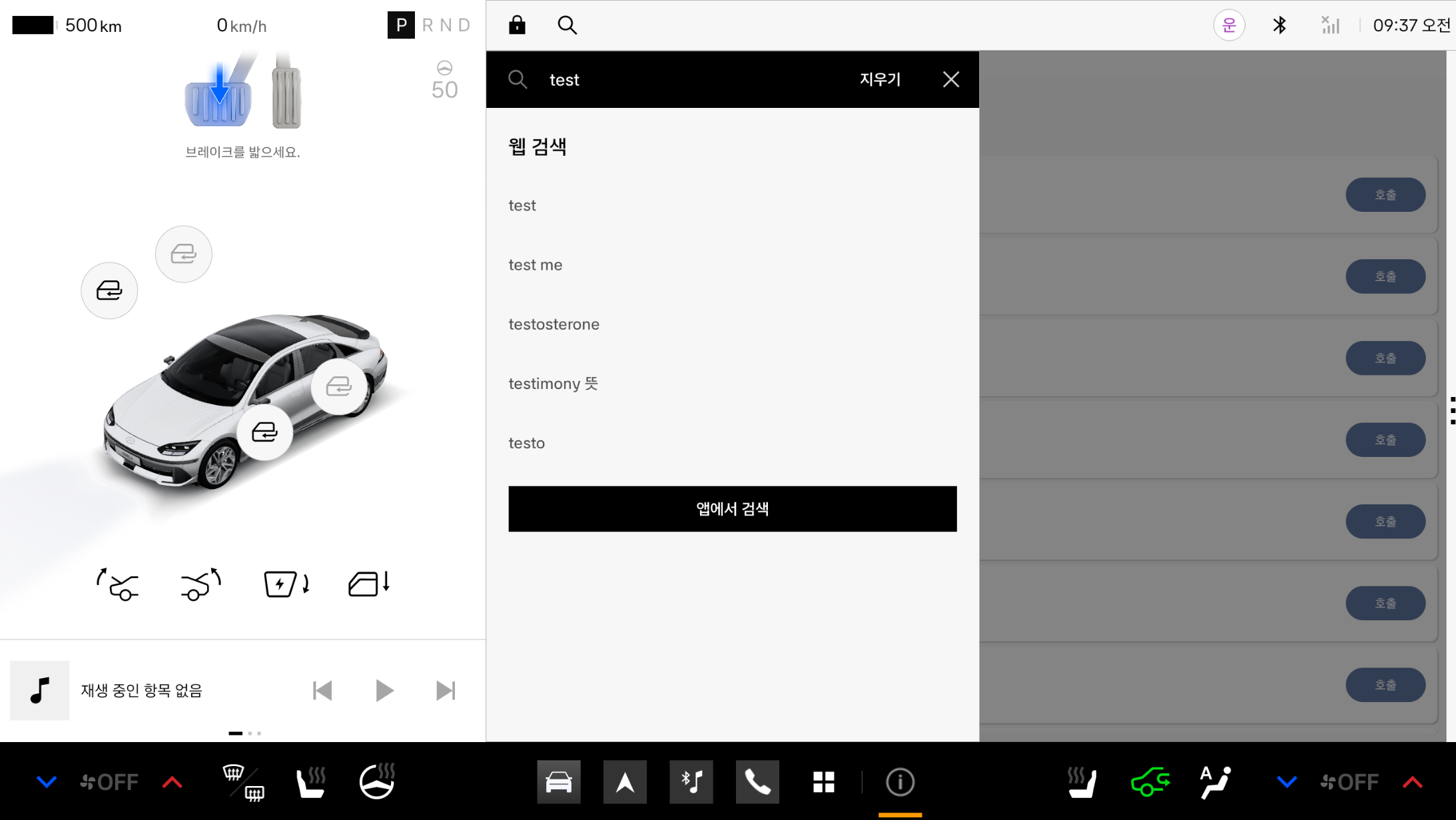
에뮬레이터 화면에 텍스트를 입력하는 명령어입니다.
adb shell input text "[텍스트]"
# adb shell input text "test"
기어 상태 변경
Pleos Connect Virtual Console에서 기어 모드를 변경합니다.
자세한 내용은 Pleos Connect Virtual Console 사용 가이드를 참조합니다.
주행 규제 활성화/해제
주행 규제를 활성화하는 단계별 명령어와 활성화한 주행 규제를 해제하는 명령어입니다.
모든 차종에서 공통으로 사용할 수 있는 명령어입니다.
- 주행 규제 활성화 (ON)
adb shell cmd hmg_car_service --service drivingstate driving_regulation on
- 주행 규제 활성화 해제 (OFF)
adb shell cmd hmg_car_service --service drivingstate driving_regulation off
모드 변경
유틸리티 모드로 변경하는 명령어입니다.
유틸리티 모드 명령어는 (차속 0 / Parking Break - On / Gear - P )를 먼저 수행한 후에 입력합니다.
adb shell echo -e -n "\x83\x50\x10\x00\x00\x02\xAA\x00\x00\x00\x00\x00\x00\x00\x00\x00\x00\x00\x00\x00\x00\x00\x00\x00\x00\x00\x00\x00\x00\x00\x00\x00\x00\x00\x00\x02\x00\x00\x00" > /dev/vcs_simulator_rx