Issue a My Vehicle API Key
You must obtain an API key before using the Vehicle Data API for Private Users.
STEP 1. Sign Up
Sign up at Pleos Playground.
STEP 2. Issue a Vehicle Data API Key for Private Users
-
Sign in to Pleos Playground.
-
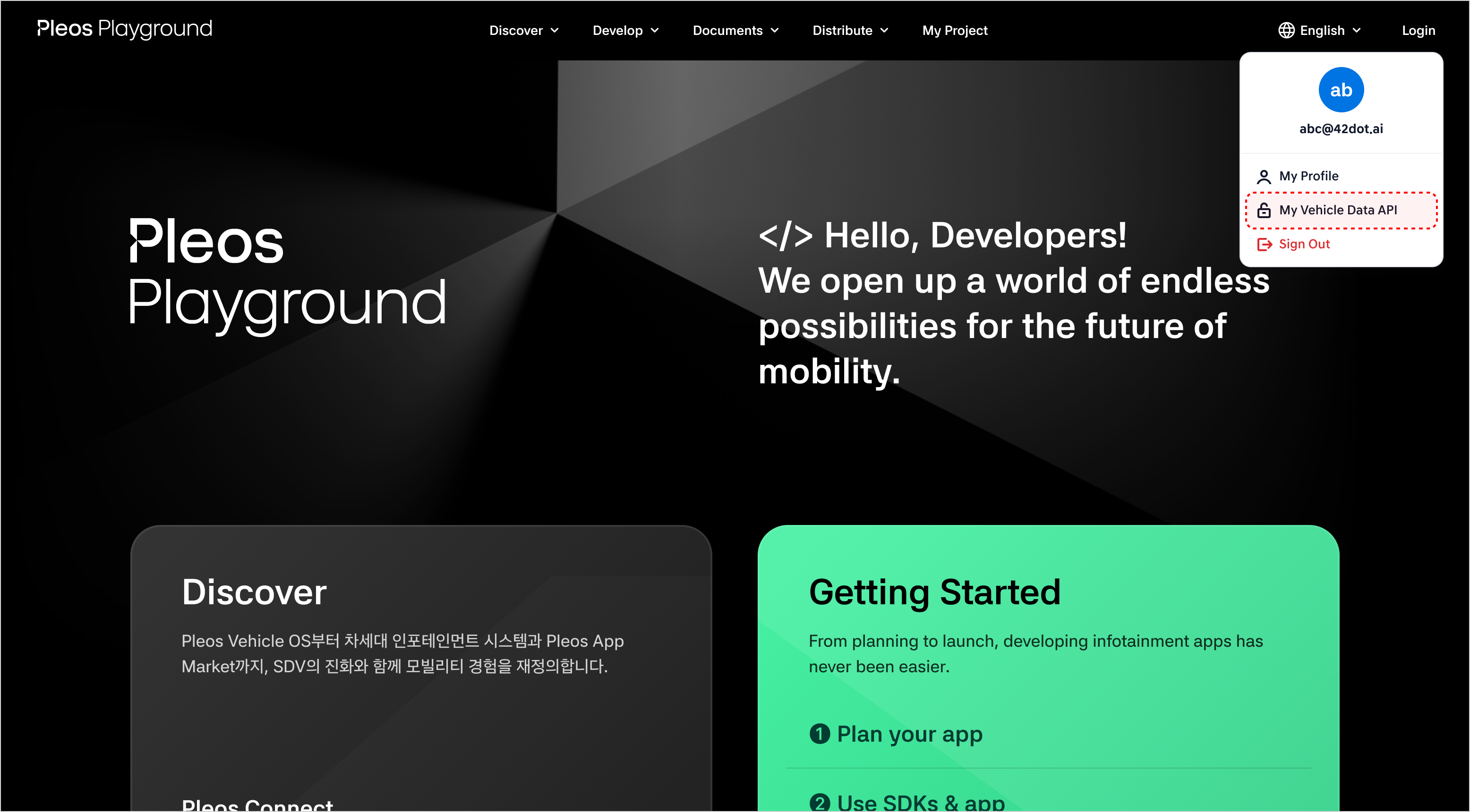
Select My Vehicle Data API from the menu that appears when you click the account icon in the upper-right corner. This menu is displayed only to users in Europe.
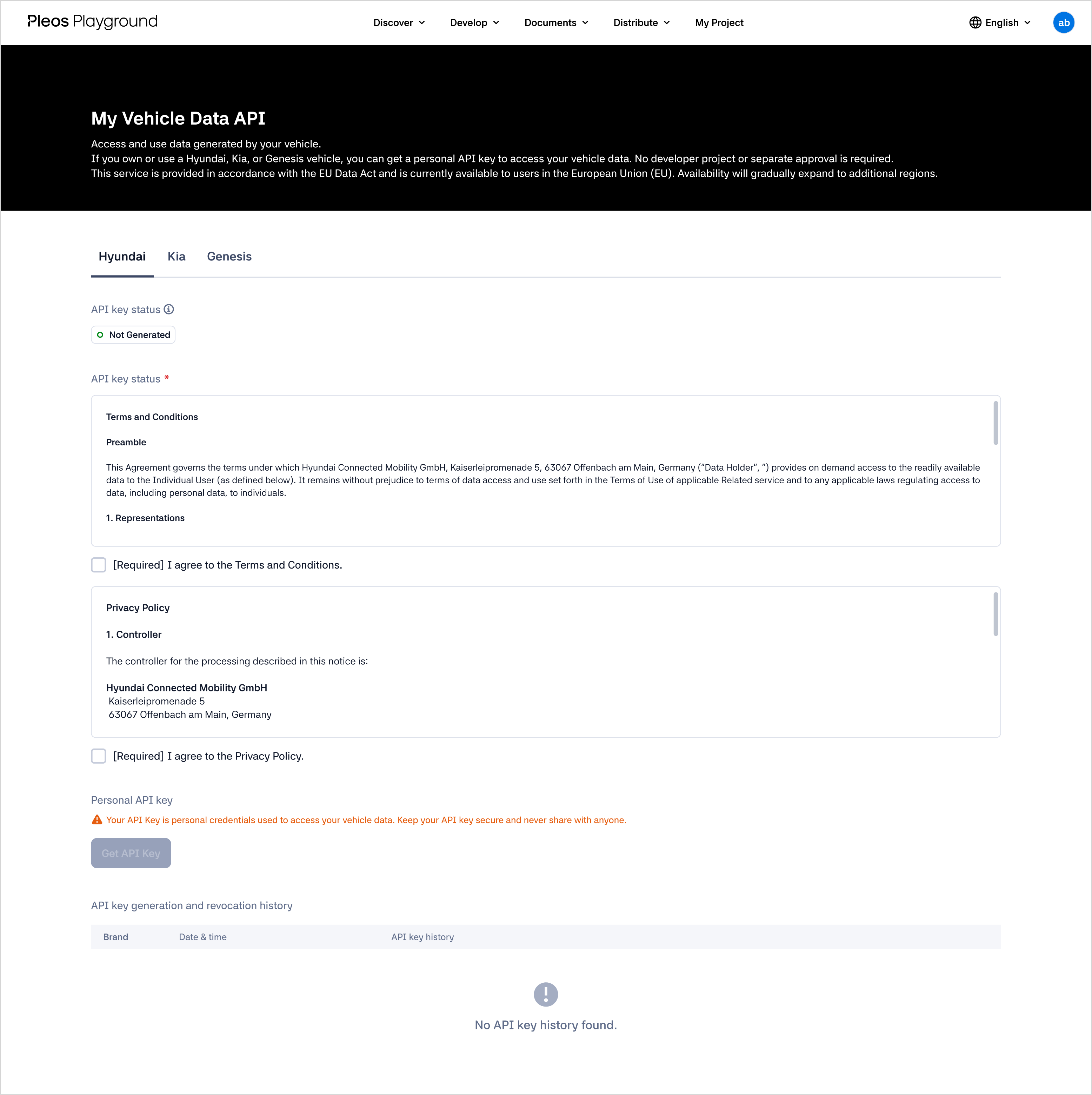
- The My Vehicle Data API screen appears. A Vehicle Data API key for Private Users is issued by vehicle manufacturer, and only one key can be issued per manufacturer. Select the tab for the vehicle manufacturer of the vehicle whose data you want to retrieve.
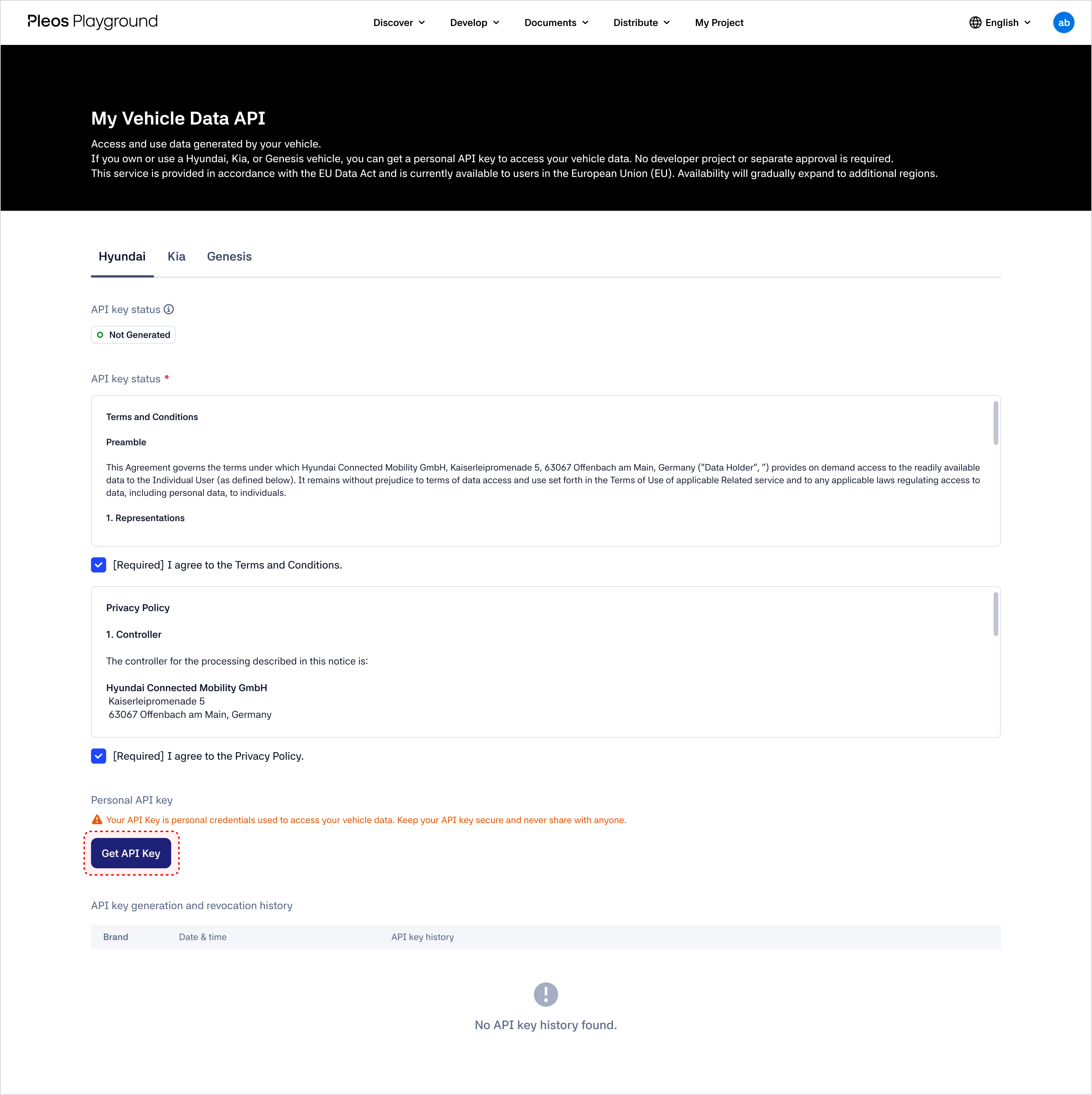
- On the manufacturer-specific My Vehicle Data API screen, agree to the terms of use. Select the [Required] I agree to the Terms and Conditions. and [Required] I agree to the Privacy Policy. checkboxes.
-
After completing step 4, the Get API Key button is enabled. Click Get API Key.
-
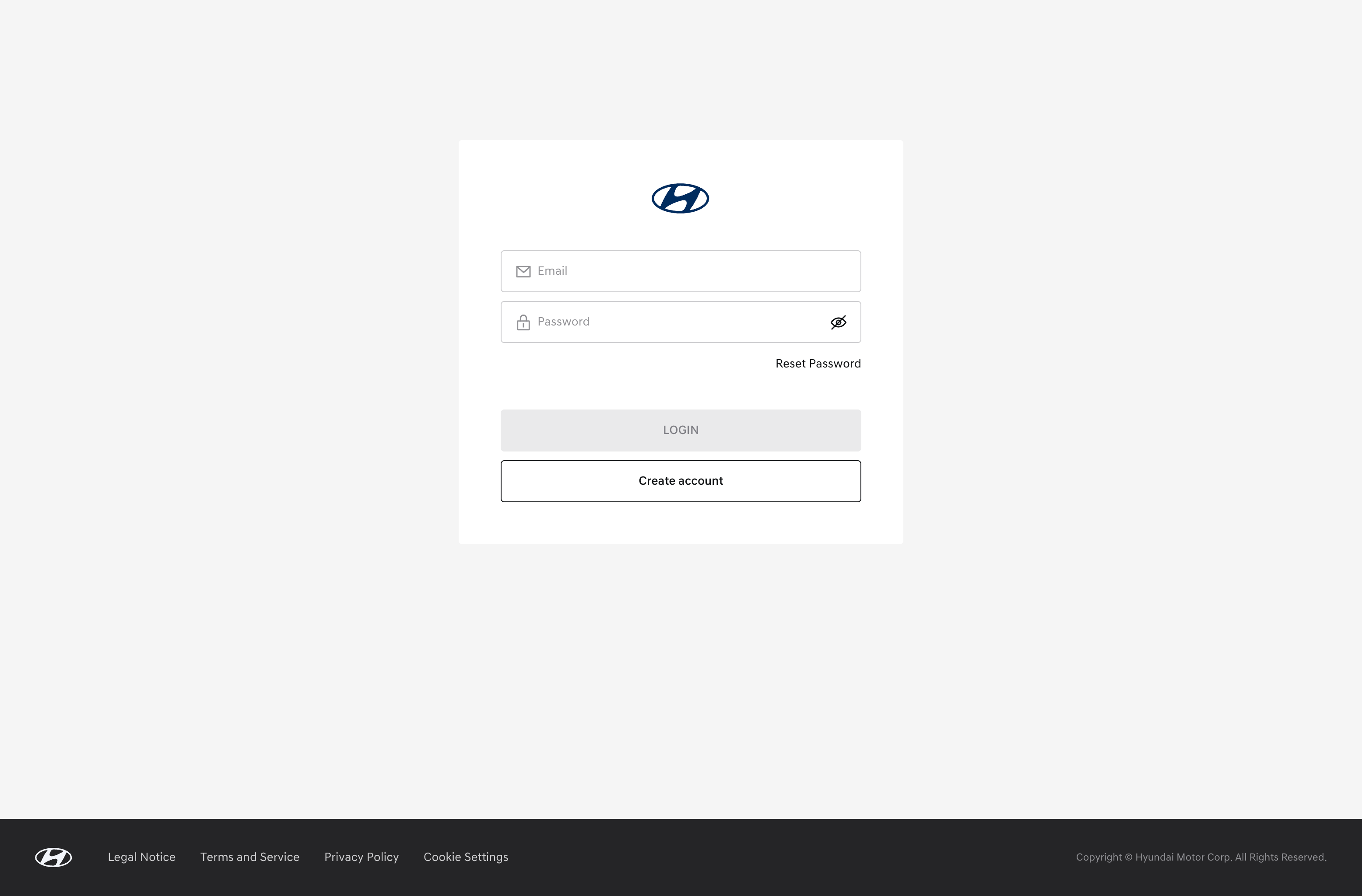
After completing step 5, the vehicle manufacturer sign-in pop-up appears.
Enter the account and password used to sign in to the vehicle manufacturer’s service. To issue a Vehicle Data API key for Private Users, sign in to Pleos Playground and then sign in once more with the account for the vehicle manufacturer of the vehicle whose data you want to retrieve.
- After completing step 6, the API key is issued. Check the Client ID and Client Secret values. Click Copy to copy the values.
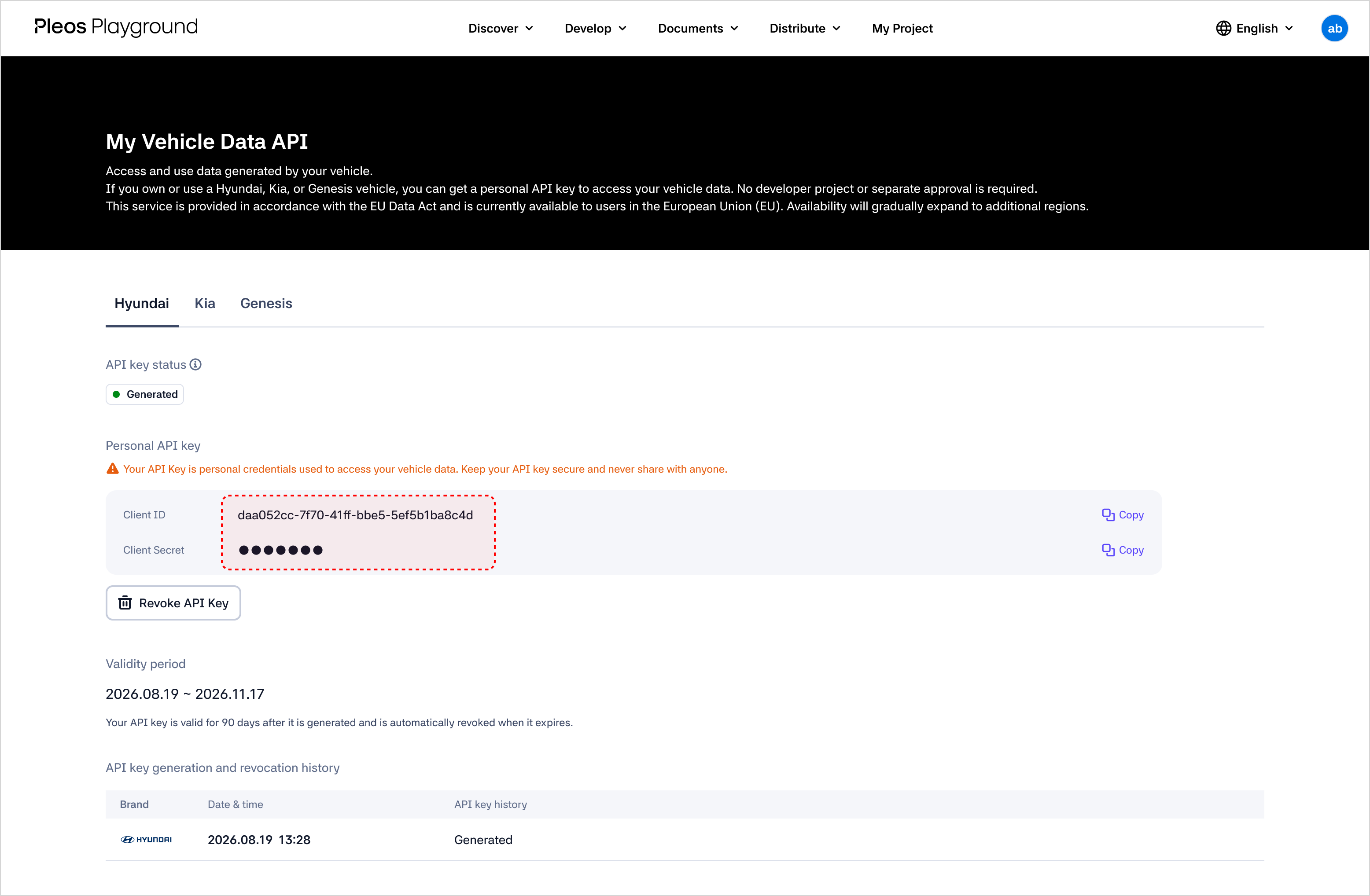
- After completing step 7, an email titled "[Pleos Playground] Your My Vehicle Data API key has been issued." is sent.
- Unlike Business Users, Private Users can issue an API key without creating a My Project.
- Unlike Business Users, Private Users can issue an API key without approval to use the Vehicle Data API.
For information about checking the API key status and revoking an API key, see Manage My Vehicle API Key.