Configuring Pleos Connect Emulator
AVD Setup
The Pleos Connect Emulator provides an environment for testing apps implemented with the Pleos Connect SDK.
It provides the Pleos Connect Virtual Console so you can test apps as if they were connected to a real vehicle.
For setup instructions, refer to the Pleos Connect Virtual Console Setup Guide. For usage instructions, refer to the Pleos Connect Virtual Console User Guide.
After installing the Pleos Connect Emulator, AVD is set up as follows.
A graphics card is required to run Pleos Connect Emulator. Check the recommended and minimum specifications below.
Recommended
- NVIDIA RTX 4060/5060 Laptop 8GB or higher
- AMD Radeon RX 7700S/RX 7600M XT class 8GB or higher discrete GPU
Minimum
- NVIDIA GeForce RTX 3060 Laptop GPU 6GB or higher
- AMD Radeon RX 6600M 8GB or RX 6700S 8GB or higher
Language Settings
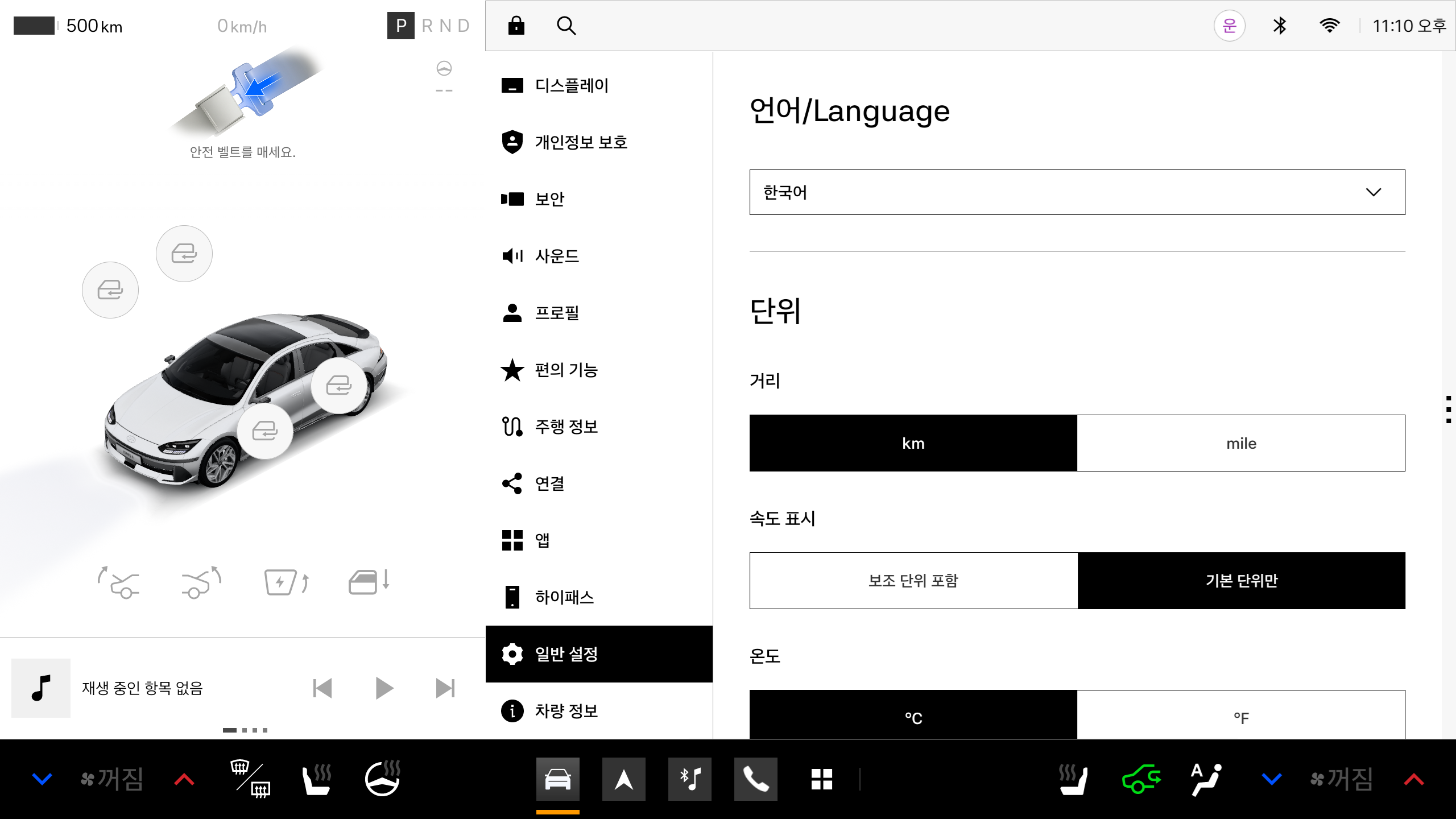
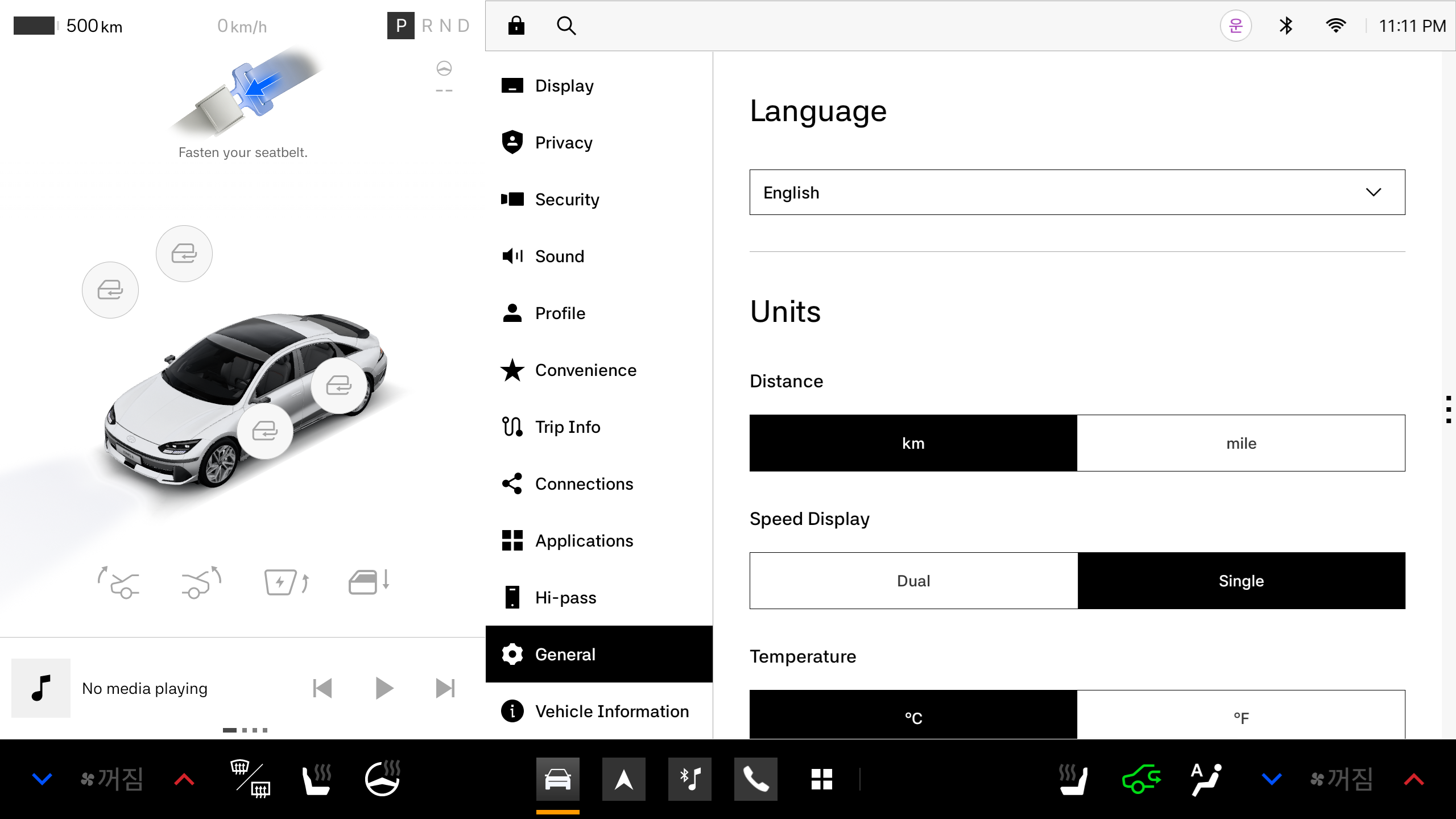
Pleos Connect Emulator uses Korean by default. To change to English, modify the language in the emulator UI menu.
Select Vehicle Settings > General > Language, and then choose English.
Microphone Access Settings
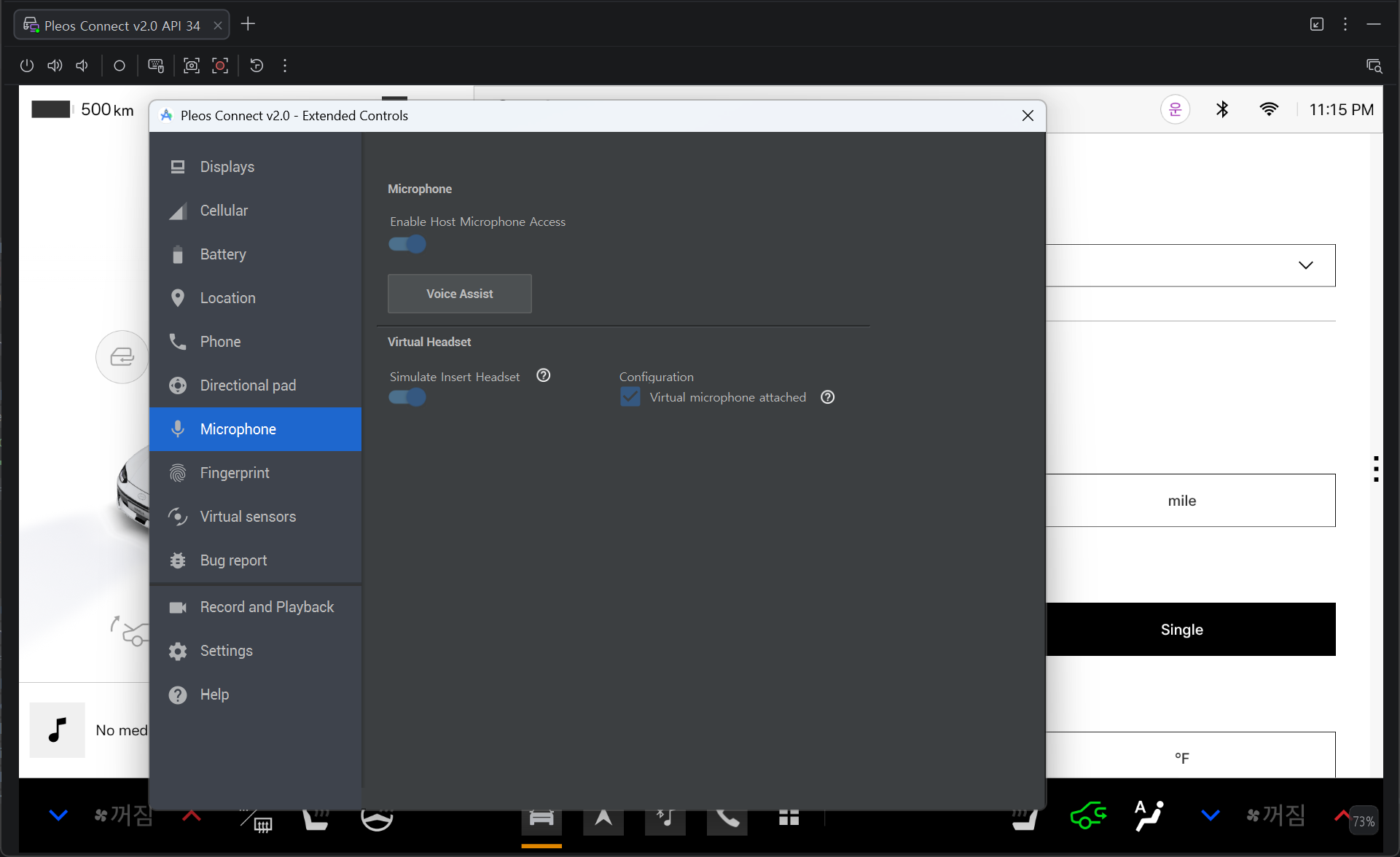
Set up microphone access in the emulator for testing SpeechToText (STT) functionality.
-
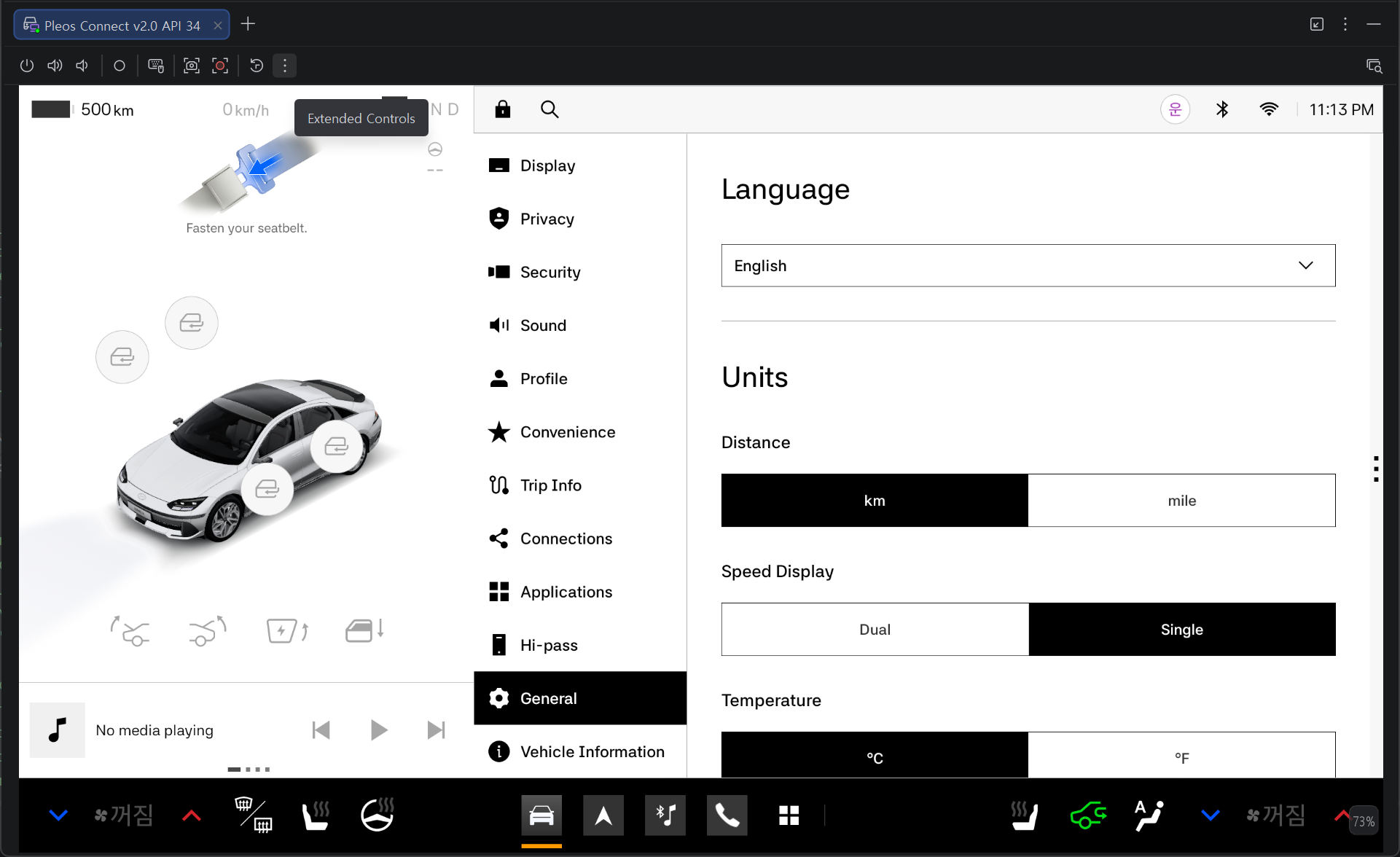
Open the Extended Controls screen in the emulator panel.
-
In the Microphone menu, set the emulator to receive audio input.
For more information, please refer to the official document on Android.
Cold Boot Settings
After installing the Pleos Connect Emulator, when adding the AVD device, be sure to set Boot options to cold boot. If set to quick boot, VHAL cannot be used. For detailed explanations of the setup procedure, please refer to the following document.
Connecting a Bluetooth Dongle to the AVD
AVD Bluetooth dongle integration is not supported in the Pleos Connect Emulator version covered by this guide.