Installing and Running Pleos Connect Emulator
Development Environment Requirements
The software development environment required to use the Pleos Connect SDK is as follows.
| Specification | Version |
|---|---|
| Minimum Android SDK | Android API level 28 or higher |
| Gradle version | 8.0 or higher |
| Development language | Java, Kotlin |
| Pleos Connect Emulator | Version 2.1.0 |
| Pleos Connect Virtual Console | Minimum Pleos Connect Emulator version that supports Pleos Connect Virtual Console: 2.1.0 |
The minSDK version must be Android API 28 or higher. This is required to meet vehicle cybersecurity requirements, including signing key rotation and lineage support.
Pleos Connect Emulator
Pleos Connect Emulator is a virtual environment for developing and validating Pleos Connect apps using Android development tools such as Android Studio. It allows you to test Android APIs and Pleos Connect APIs together and verify app behavior by emulating vehicle control functions and vehicle context data.
Installing the Pleos Connect Emulator
Prerequisite
- Install the latest version of Android Studio.
- You can download Android Studio here.
- Check that your system meets the system requirements for running the Android Emulator.
Adding the Emulator to Android Studio
If a previous version of Pleos Connect Emulator is installed, remove the existing version before proceeding with the installation steps below.
- In Android Studio, select Menu > Tools > SDK Manager.
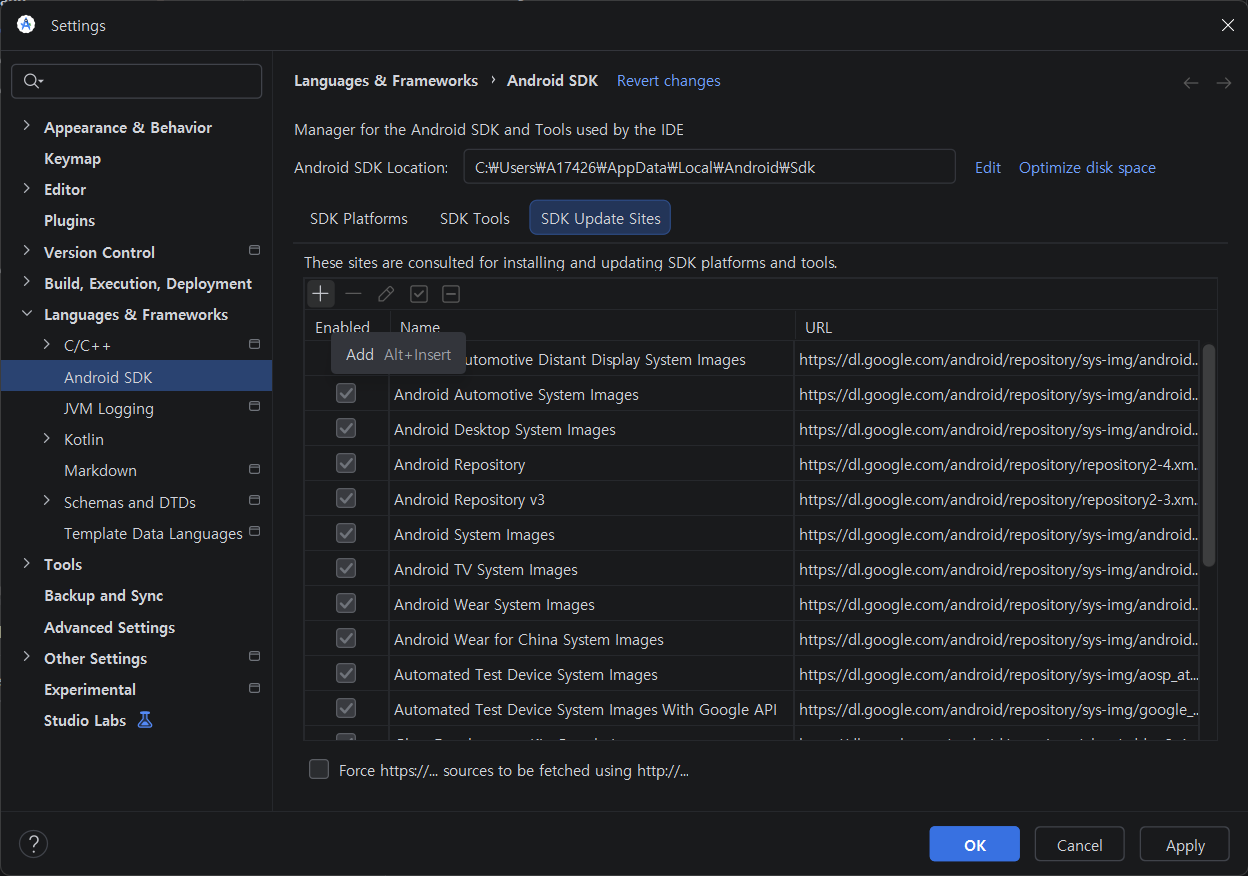
- Click the SDK Update Sites tab.
- Click the + button at the top left of the list.
-
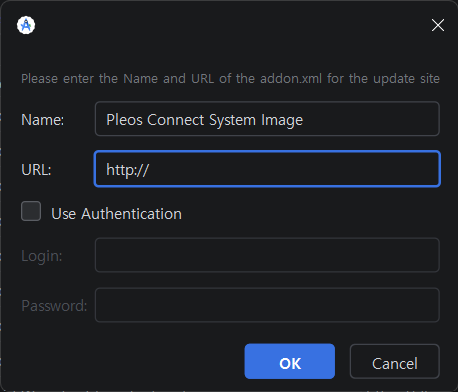
Enter the following information to add the Pleos Connect SDK site.
- Name: Pleos Connect System Image
- URL for Mac:
https://nexus-playground.pleos.ai/repository/raw-releases/connect-avd/2.x/crp-arm64-sys-img.xml - URL for Windows/Linux:
https://nexus-playground.pleos.ai/repository/raw-releases/connect-avd/2.x/crp-sys-img.xml
-
Click the OK button.
-
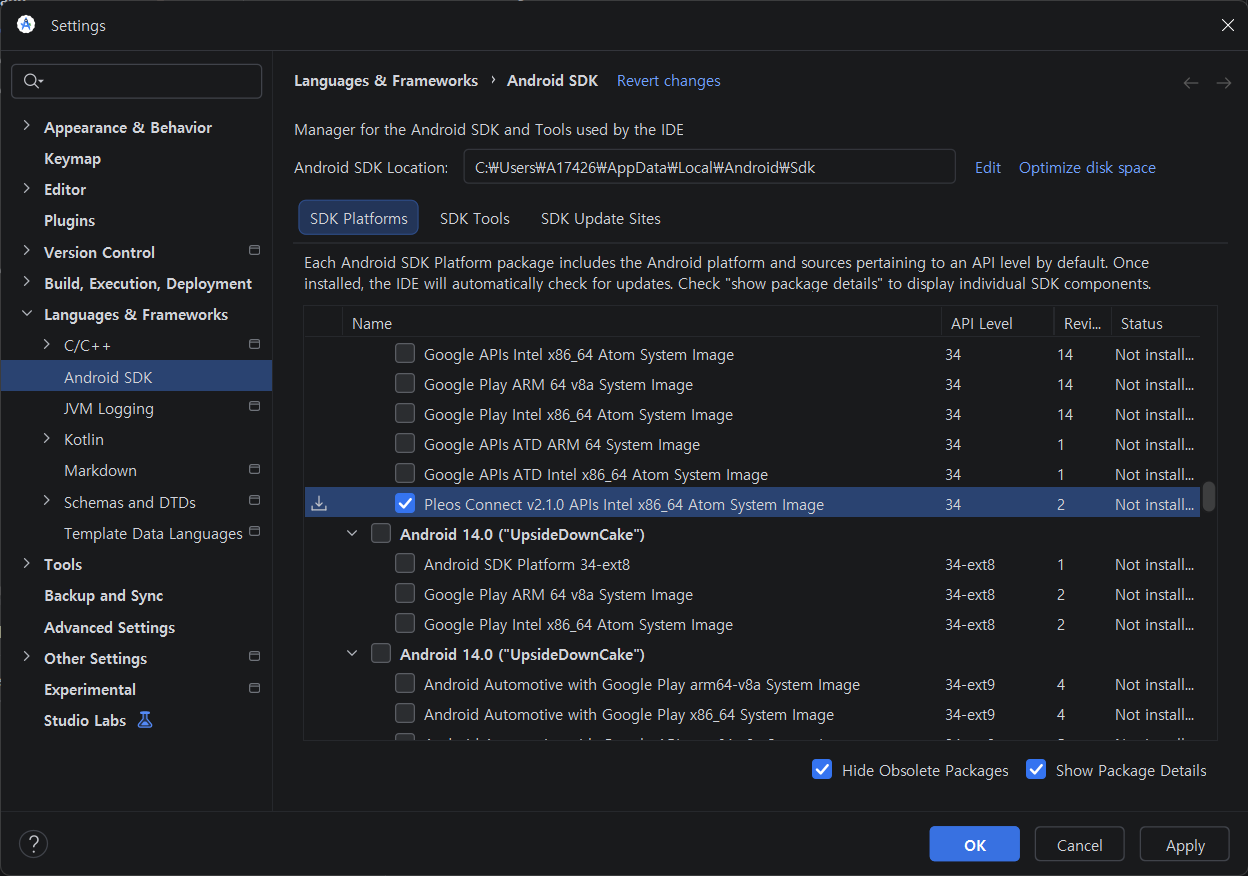
Click the SDK Platforms tab.
-
Select the Pleos Connect system image for Android API level 34.
-
Enable the Show Package Details checkbox at the bottom.
-
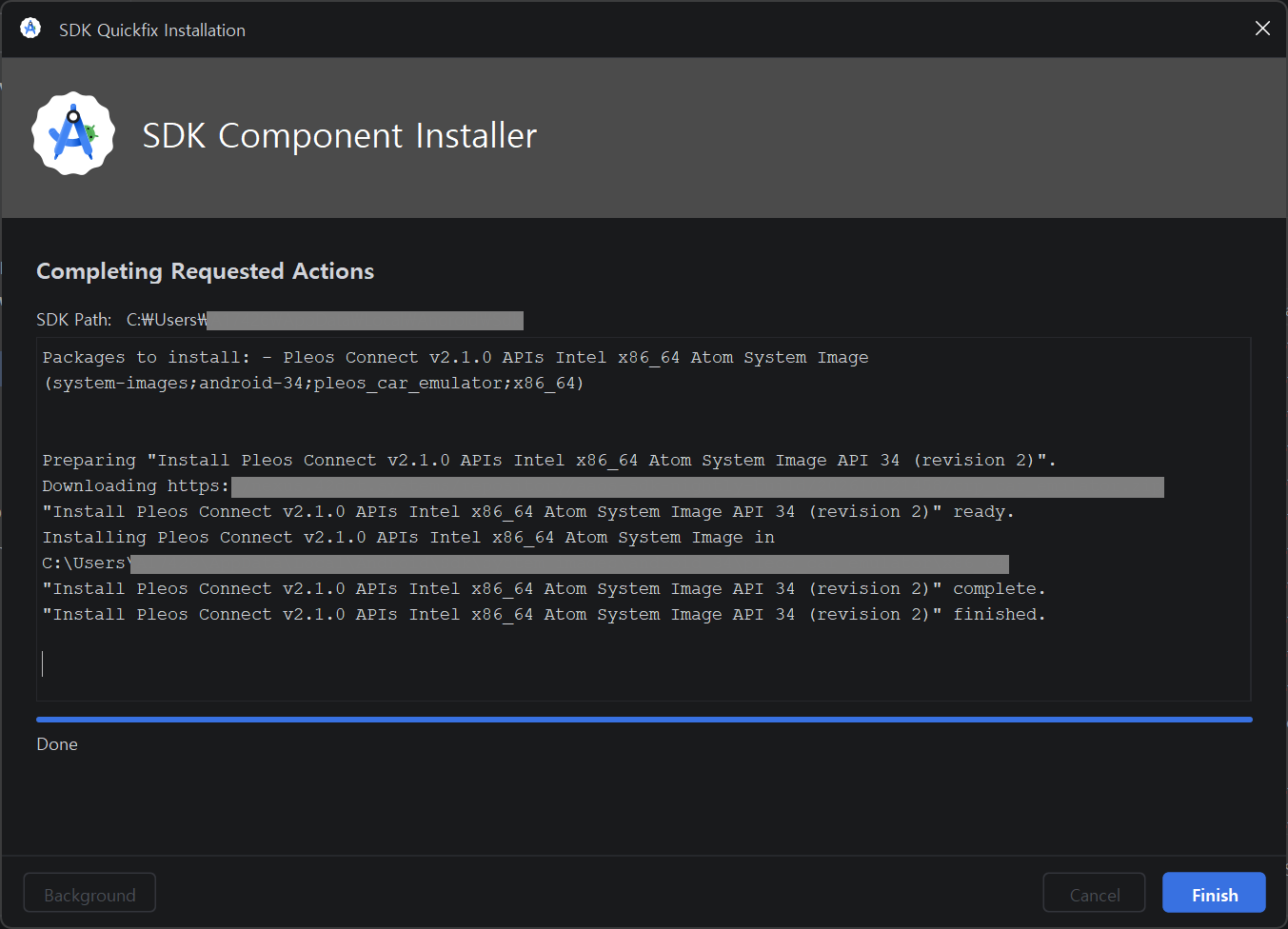
Click the OK button to proceed with the Pleos Connect Emulator image installation as shown below.
-
Once the installation is complete, press the Finish button and restart Android Studio.
Setting up the emulator
-
Start Android Studio. If you did not restart it in the previous step, restart it first.
-
Create an Android Virtual Device (AVD) using the Pleos Connect Emulator.
-
In Android Studio, select Menu > Tools > Device Manager. In earlier versions of Android Studio, select Menu > Tools > AVD Manager.
-
Click Create device. In earlier versions of Android Studio, click Create Virtual Device.
-
Select
Automotiveunder Form Factor on the left. -
Select
Pleos Connect v2.1.0and click the Next button.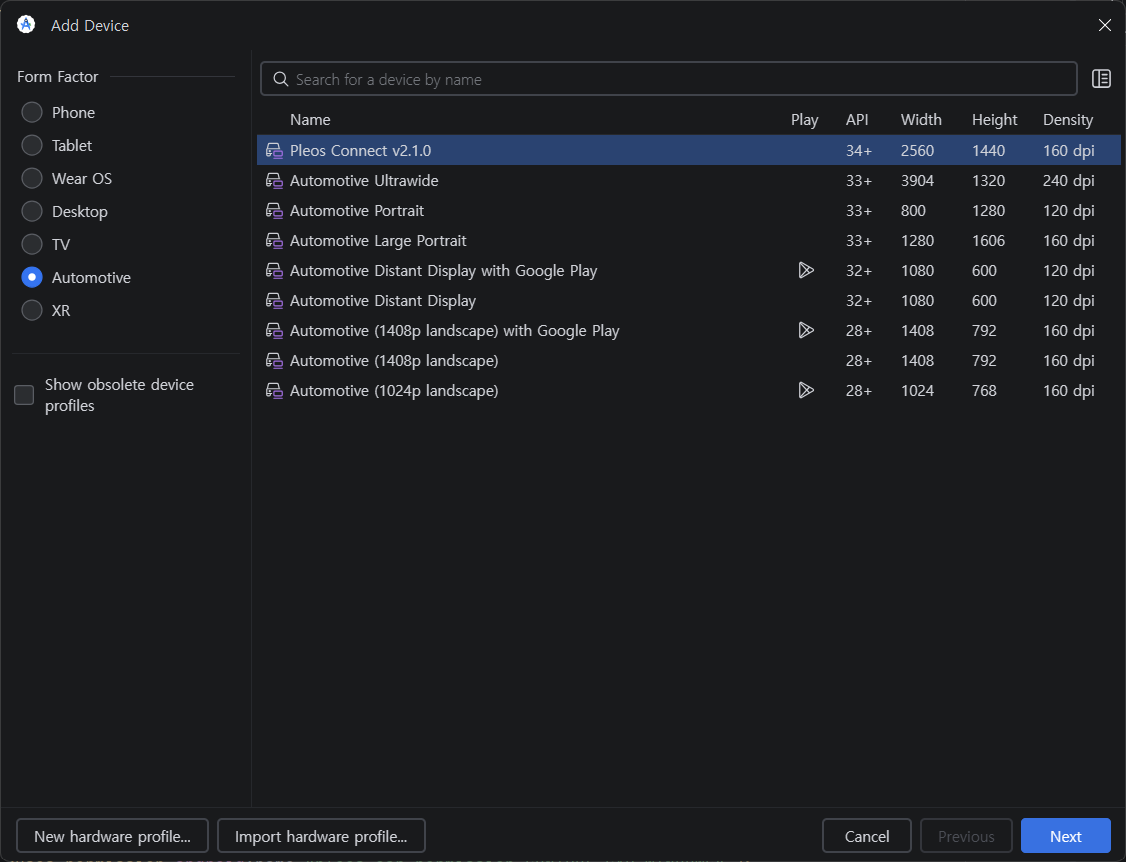
-
In the Configure virtual device window, select the Advanced Settings tab. In earlier versions of Android Studio, click the Show Advanced Settings button.
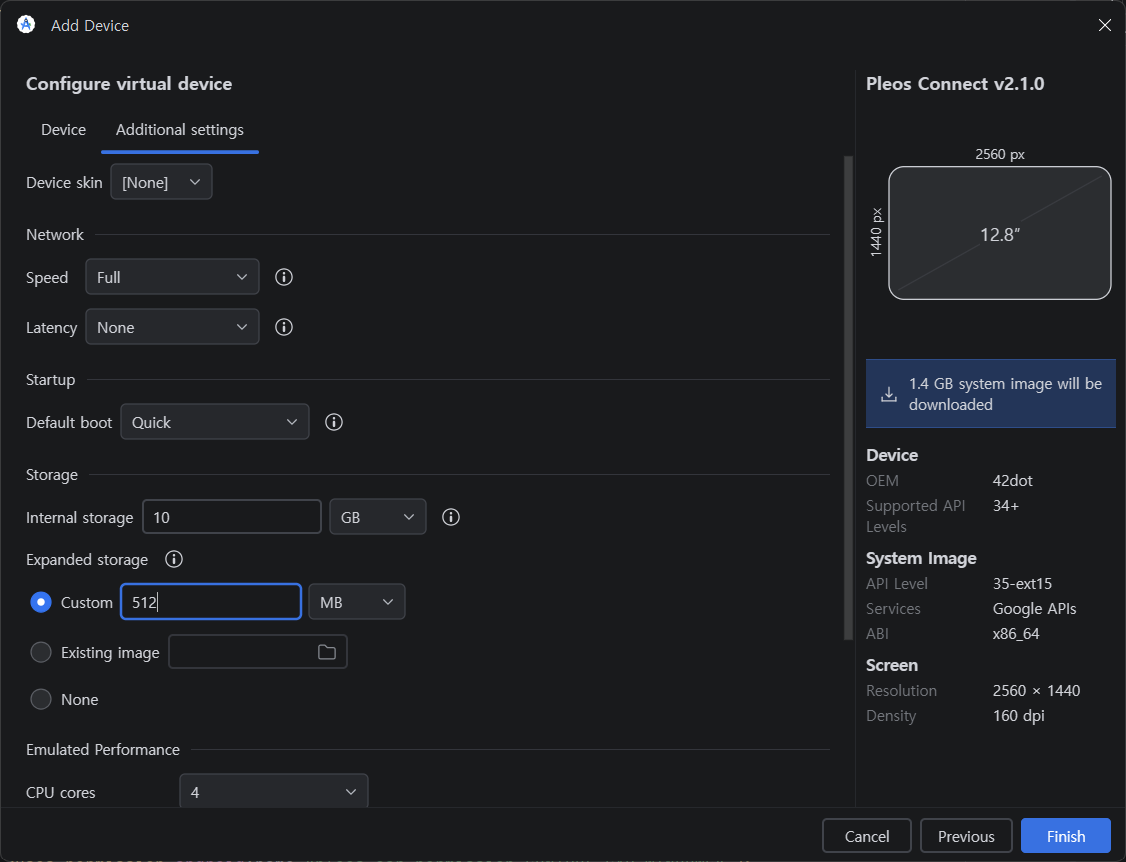
-
Under Startup > Default boot, select
Cold. In earlier versions of Android Studio, set Graphics toHardwareunder Emulated Performance, and selectCold bootunder Boot option.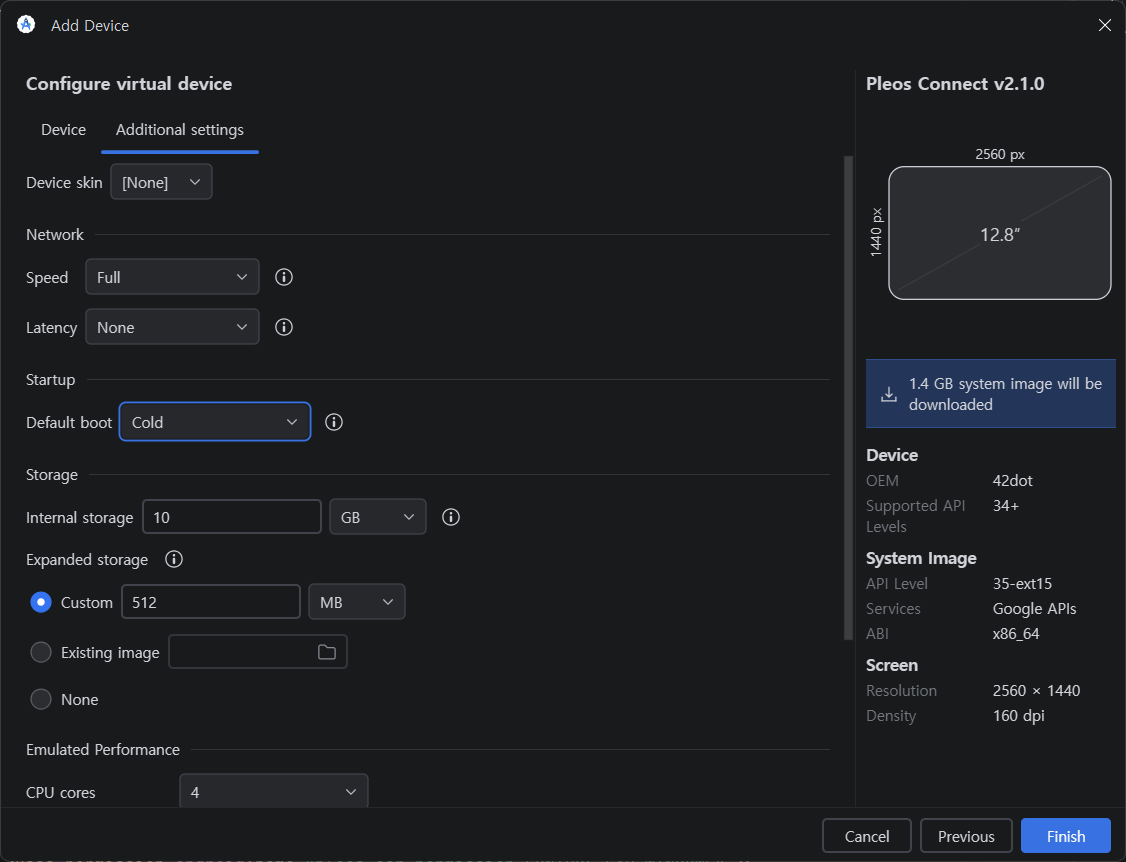
-
Under Emulated Performance, set RAM size to
4 GB.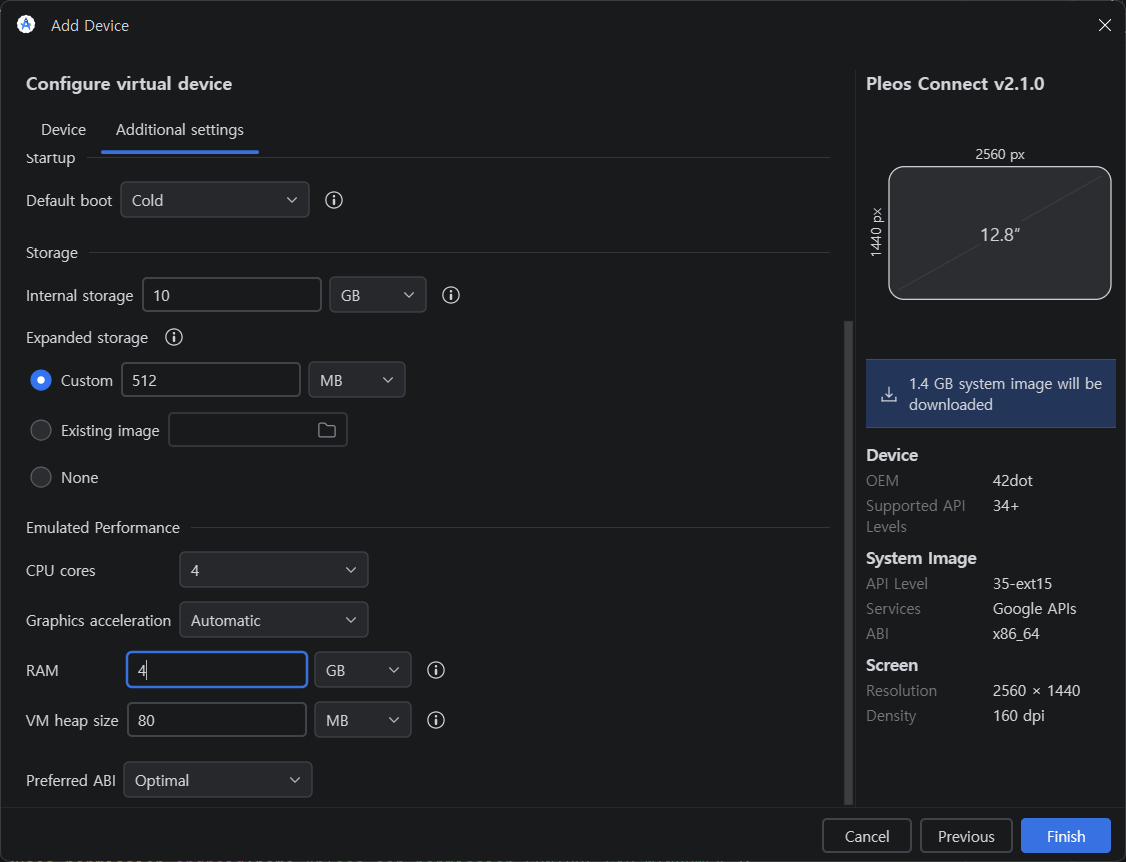
-
Return to the Device tab. Under Select system image > API, select
API 34, selectPleos Connect v2.1.0 APIsfrom the table at the bottom, and click Finish.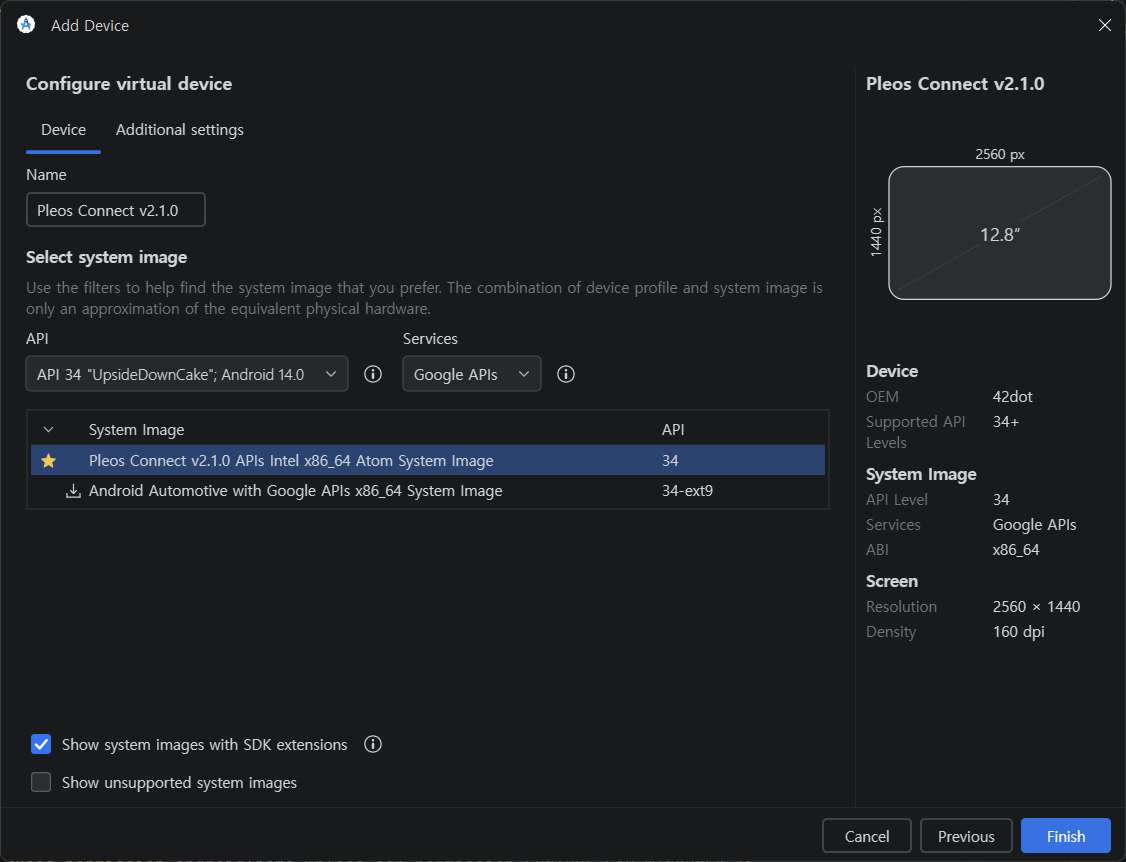
Running on the emulator
- In Android Studio, run the AVD you created from Menu > Tools > Device Manager.
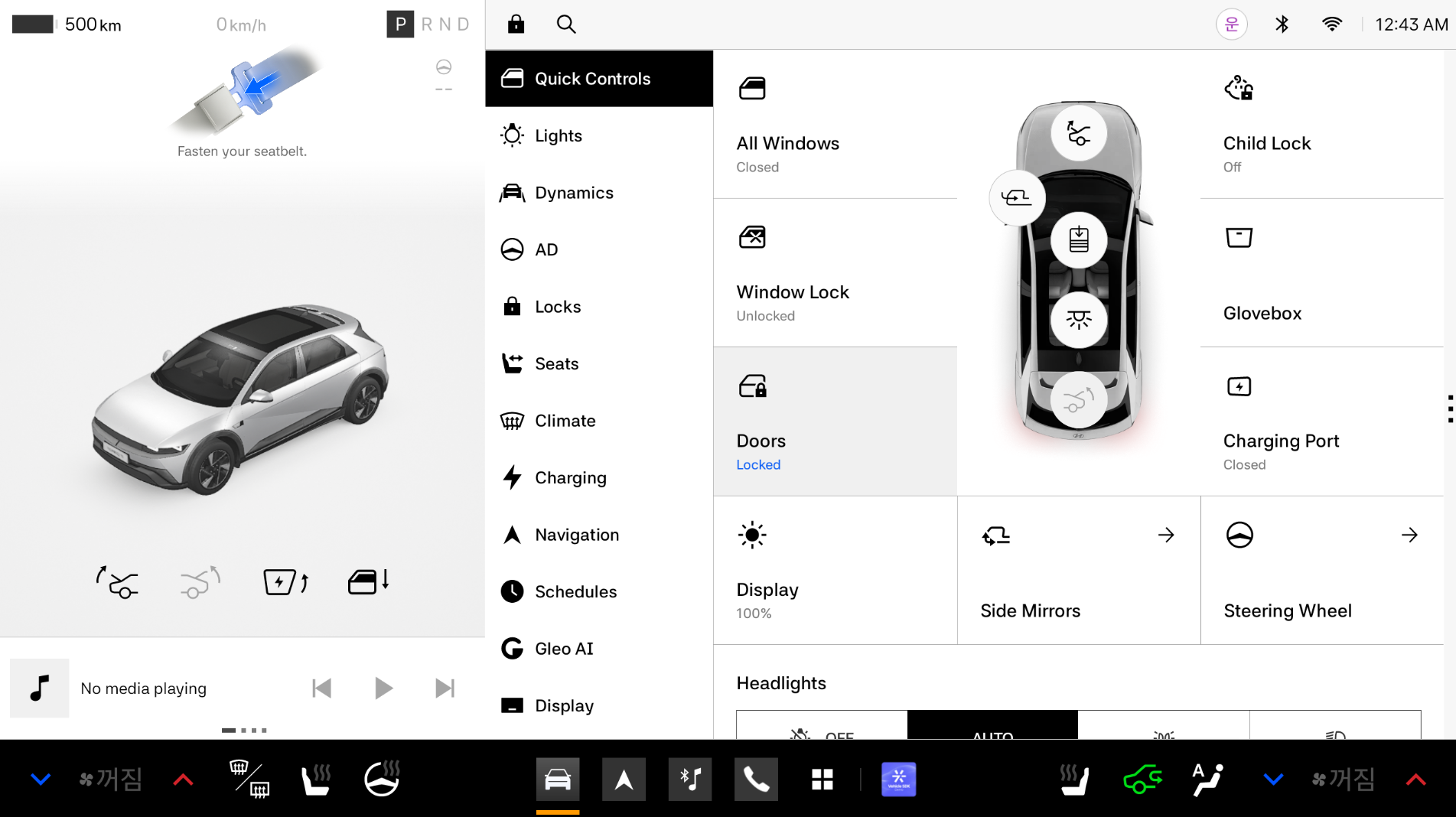
For emulator runtime environment settings, refer to Configuring Pleos Connect Emulator.
Troubleshooting
The Android Emulator has several known issues. Refer to the link below for troubleshooting: Troubleshooting Known Issues with Android Emulator
Android Studio and the Gradle plugin also have several known issues. Refer to the link below for details: Known Issues in Android Studio and Android Gradle Plugin