Pleos Connect Virtual Console Setup Guide
Pleos Connect Virtual Console
Pleos Connect Virtual Console is a development and testing tool that reproduces and simulates core vehicle functions in the Pleos Connect Emulator environment. App developers can manipulate vehicle states and events in a way similar to real user interactions to verify the following items.
- Changing vehicle status, such as vehicle speed, doors, and lights
- Reproducing driving and vehicle event scenarios
- Checking real-time vehicle status reflected in the app screen
- Verifying that vehicle control commands operate as expected
- Running repeated tests and demonstration scenarios
The minimum Pleos Connect Emulator version that supports Pleos Connect Virtual Console is v2.1.0. If Pleos Connect Virtual Console does not operate normally, check the Pleos Connect Emulator version.
How to Run Pleos Connect Virtual Console
After starting Pleos Connect Emulator, complete the following two steps to use Pleos Connect Virtual Console.
-
Forward emulator port 8088 from a terminal.
adb forward tcp:8088 tcp:8088 -
Open the following address in a PC browser.
http://127.0.0.1:8088/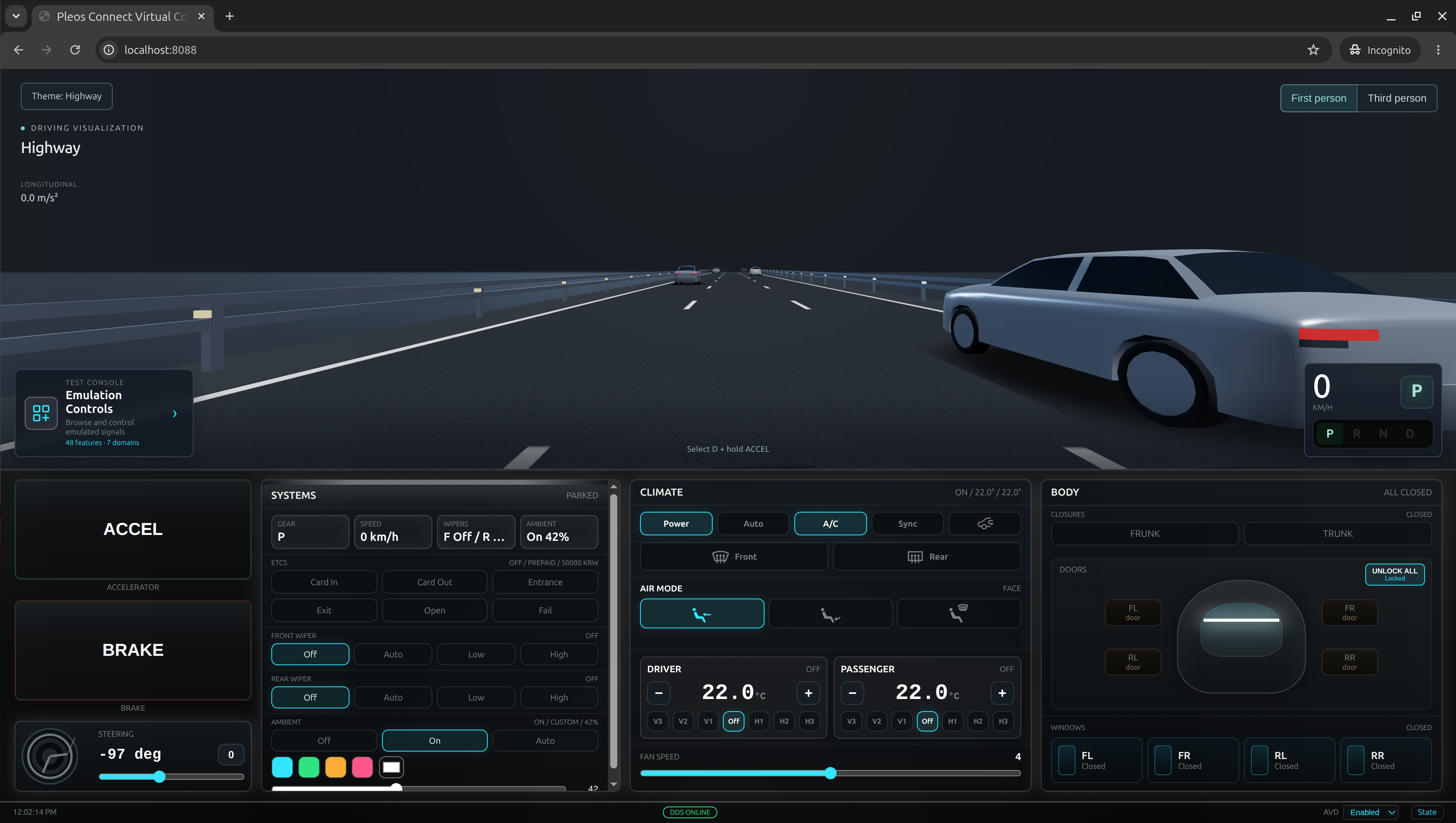
Key Features
In Pleos Connect Virtual Console, you can simulate vehicle functions such as the gear, steering wheel, climate system, doors, and windows.
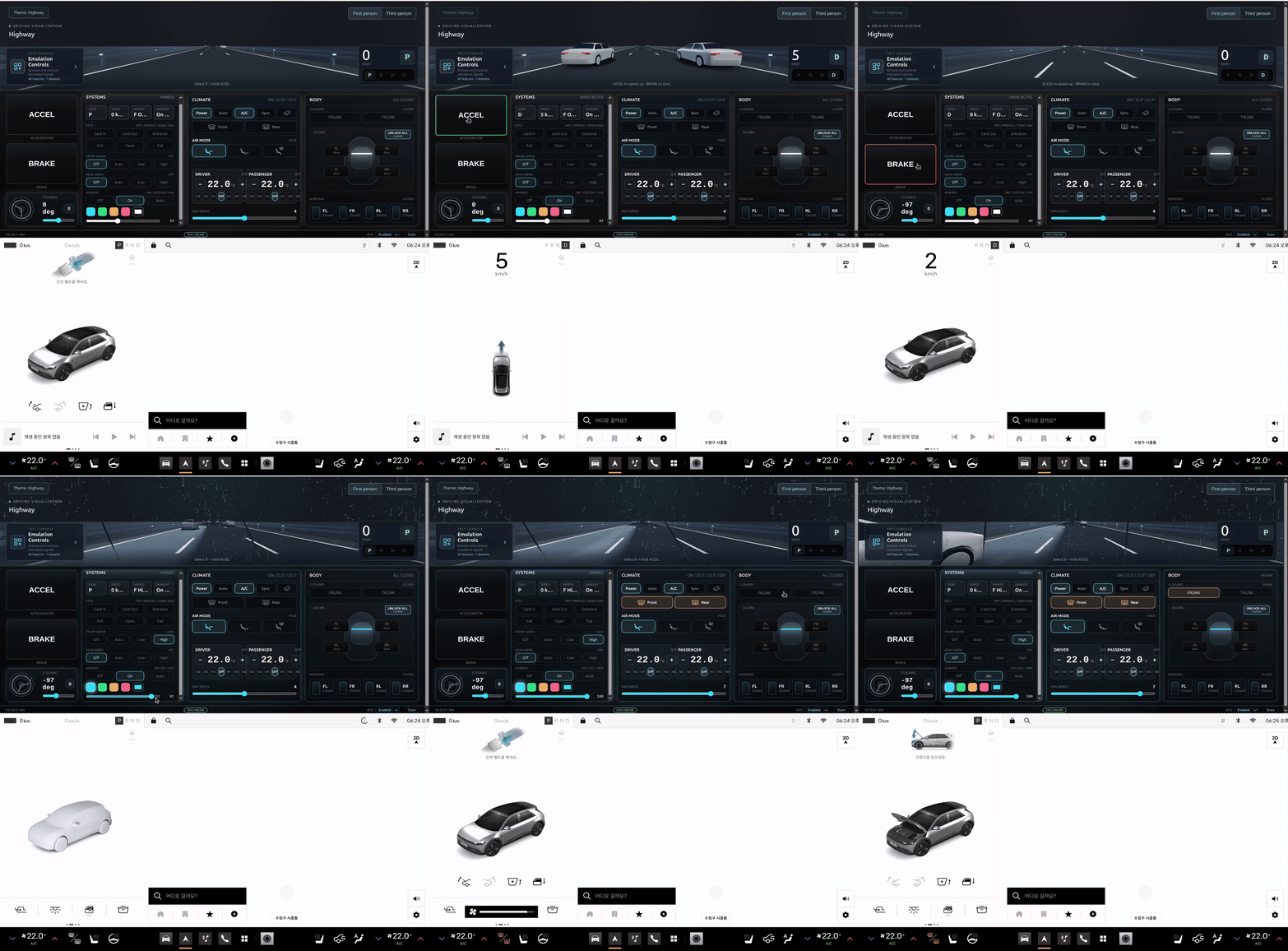
Emulation Controls
In Emulation Controls, you can find vehicle functions by domain, set their states, and check responses in Pleos Connect Emulator and your app. Select a domain from the list on the left, then change values on the target function cards.
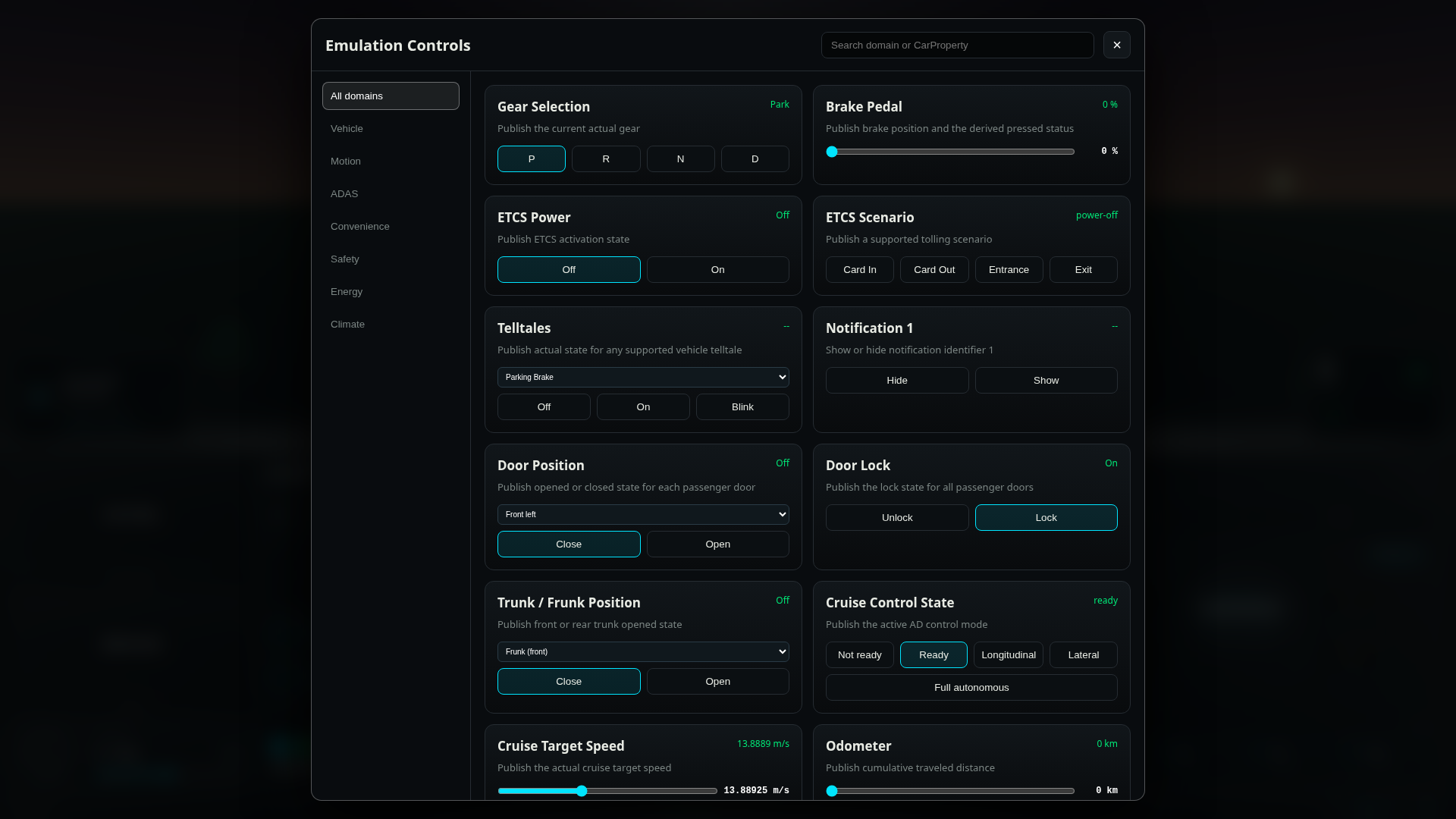
| Domain | Description |
|---|---|
| Vehicle | Simulates whether vehicle notifications are shown or hidden. You can check how Pleos Connect Emulator and your app respond to notification states. |
| Motion | Sets gear, brake, steering wheel angle, and driving distance. You can also simulate steering wheel heating levels. |
| ADAS | Sets the ready and active states of cruise control and the target speed. You can check whether the selected driving-assistance state is reflected in the app. |
| Convenience | Simulates the states and actions of convenience features such as doors, windows, trunk, seats, lights, and wipers. You can also control ETCS scenarios and the glove box. |
| Safety | Sets vehicle warning lights such as the parking brake, seat belt, and ABS to off, on, or blinking. You can check how warning states are displayed. |
| Energy | Sets remaining range, battery capacity, and charge state. You can also simulate charging current, target charge amount, and charge port state. |
| Climate | Sets HVAC power, temperature, fan speed, airflow direction, recirculation, and defroster states. You can also control seat heating, seat ventilation, and the air cleaner. |
For the full list of cards and configurable ranges in Emulation Controls, see the Pleos Connect Virtual Console User Guide.
Theme and Viewpoint Switching
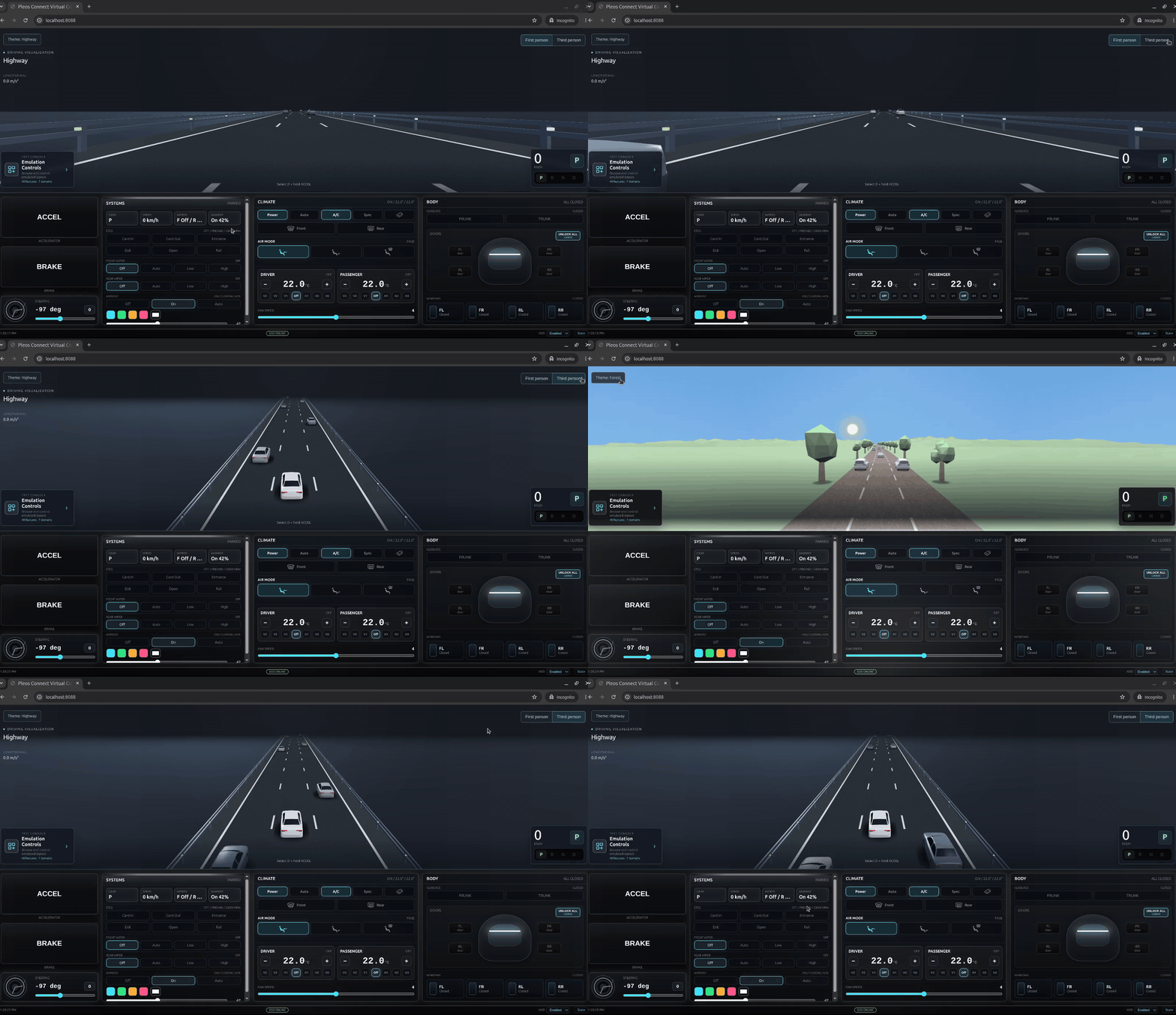
You can change the design of the driving visualization area at the top of the screen through the Theme menu. Theme changes do not affect vehicle testing functions.
- When gear is in P, use the Theme button at the top-left to switch to either the Highway theme or the Forest theme.
- In the Highway theme, use the First person or Third person button at the top-right to select a first-person or third-person viewpoint.
Troubleshooting
If you cannot connect to Pleos Connect Virtual Console, check the following items in order.
- Check whether the Pleos Connect Emulator is running.
- Check whether you are using a Pleos Connect Emulator image that supports Pleos Connect Virtual Console.
- Run
adb devicesto check whether the emulator is connected through ADB. - Run
adb forward tcp:8088 tcp:8088again. - Check whether another process is using port 8088 on the PC.
- Reconnect from the PC browser at
http://127.0.0.1:8088/.