Delivering the Schema to Gleo
Delivering the Schema to Gleo
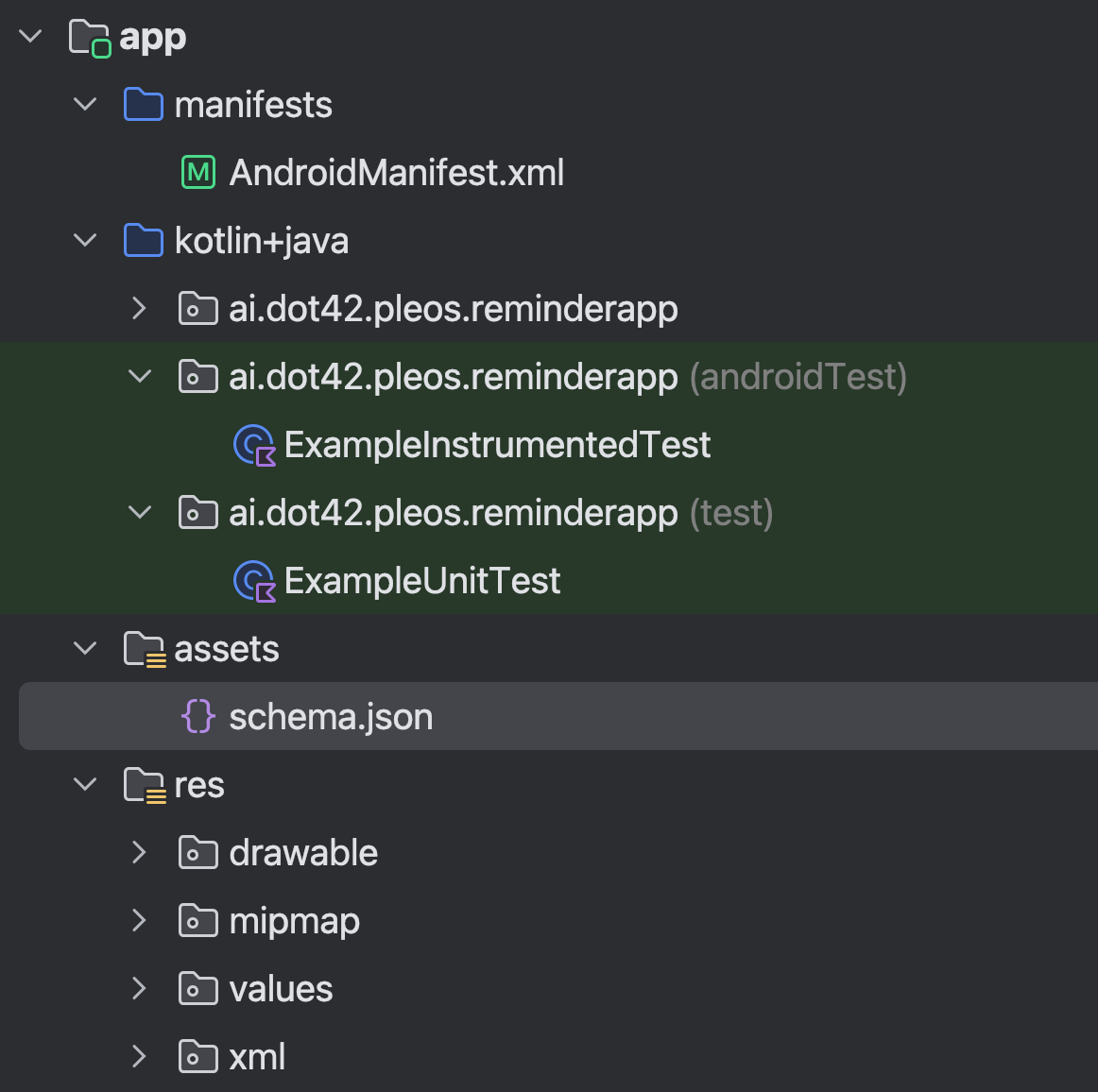
- Create an App Schema file
- The file name must be “schema.json”
- Place the file in the app’s
assets/directory. (Path :assets/schema.json) - Make sure to follow the App Schema Writing Guide when writing the schema.
- App Schema review
- When we receive an App Schema, we will review it to ensure it follows our guidelines.
- After approval, the integration will become available automatically.
- Define action filters in
AndroidManifest.xml- To receive a Gleo Action, define action filters for each function.
- Below is an example of
ADD_REMINDERfunction in a reminder app.
<activity android:name=".YourActivity">
    <intent-filter>
        <action android:name="ADD_REMINDER" />
        <category android:name="android.intent.category.DEFAULT" />
    </intent-filter>
</activity>
- Behavior on app boot
- When Gleo AI App(our app that runs Gleo AI and interacts with thrid-party apps) boots, it uses the
AssetManagerto scan all system or third-party apps. - Any
schema.jsonfile found in theassets/directory is read and stored in the database. - This process runs once at boot time.
- When Gleo AI App(our app that runs Gleo AI and interacts with thrid-party apps) boots, it uses the
- Behavior on app install/uninstall (AAOS environment)
- When Gleo AI App is installed (via ADB install or App Market) or uninstalled, it reads the
schema.jsonfile from the app’sassets/directory and updates the database accordingly.
- When Gleo AI App is installed (via ADB install or App Market) or uninstalled, it reads the
- If you need further guidance on this part, please contact us.