Form Factor Test Guide
In the form factor test, you create a virtual display on a running Pleos Connect Emulator and run the target app on that display. In the FormFactorConsole app, you can switch display type and orientation to verify that the app screen is rendered correctly.
Before you start
Prepare the following:
- Android Studio and Android SDK Platform-Tools
- Go 1.22 or later
- A Pleos Connect Emulator with the target app installed
- An environment where ports
8095and8096are available
Virtual displays appear only when Android Emulator is running in a separate window. Do not embed it in Android Studio Running Devices or run it in headless mode.
1. Set up and run the AVD
For adding a system image and creating/running an AVD, see the AVD run guide.
After starting the AVD, check the connection status in a terminal:
adb devices
If multiple devices are connected, use the serial of the target AVD (for example, emulator-5554) as <SERIAL> in subsequent commands. Check the running AVD name with the following command and copy the returned name.
Command
adb emu avd name
Expected output
Pleos_Connect_v2.0
OK
2. Run Host Display Bridge
Host Display Bridge relays virtual display create/remove requests between FormFactorConsole on the host and Android Emulator.
- Download host-display-bridge.zip and extract it.
- In a terminal, move to the extracted
host-display-bridgedirectory. - Enter the AVD name identified earlier in
<AVD_NAME>and run the bridge.
Command
go run . --avd "Pleos Connect v2.0"
Expected output
2026/09/27 17:58:15 ConnectWebConsole host display bridge listening on http://127.0.0.1:8096
2026/09/27 17:58:15 Emulator gRPC target: 127.0.0.1:8554 (AVD: Pleos Connect v2.0)
2026/09/27 17:58:15 Emulator discovery file: C:\Users\A17315\AppData\Local\Temp\avd\running\pid_131004.ini
If you see a log indicating it is listening on http://127.0.0.1:8096, it is running normally. Do not close this terminal until testing is complete.
If the bridge cannot find the AVD, check whether the AVD is fully booted and whether the name passed to --avd is correct. If multiple AVDs are running, it is recommended to stop the non-test AVDs and try again.
3. Open FormFactorConsole
On the emulator, run the FormFactorConsole app.
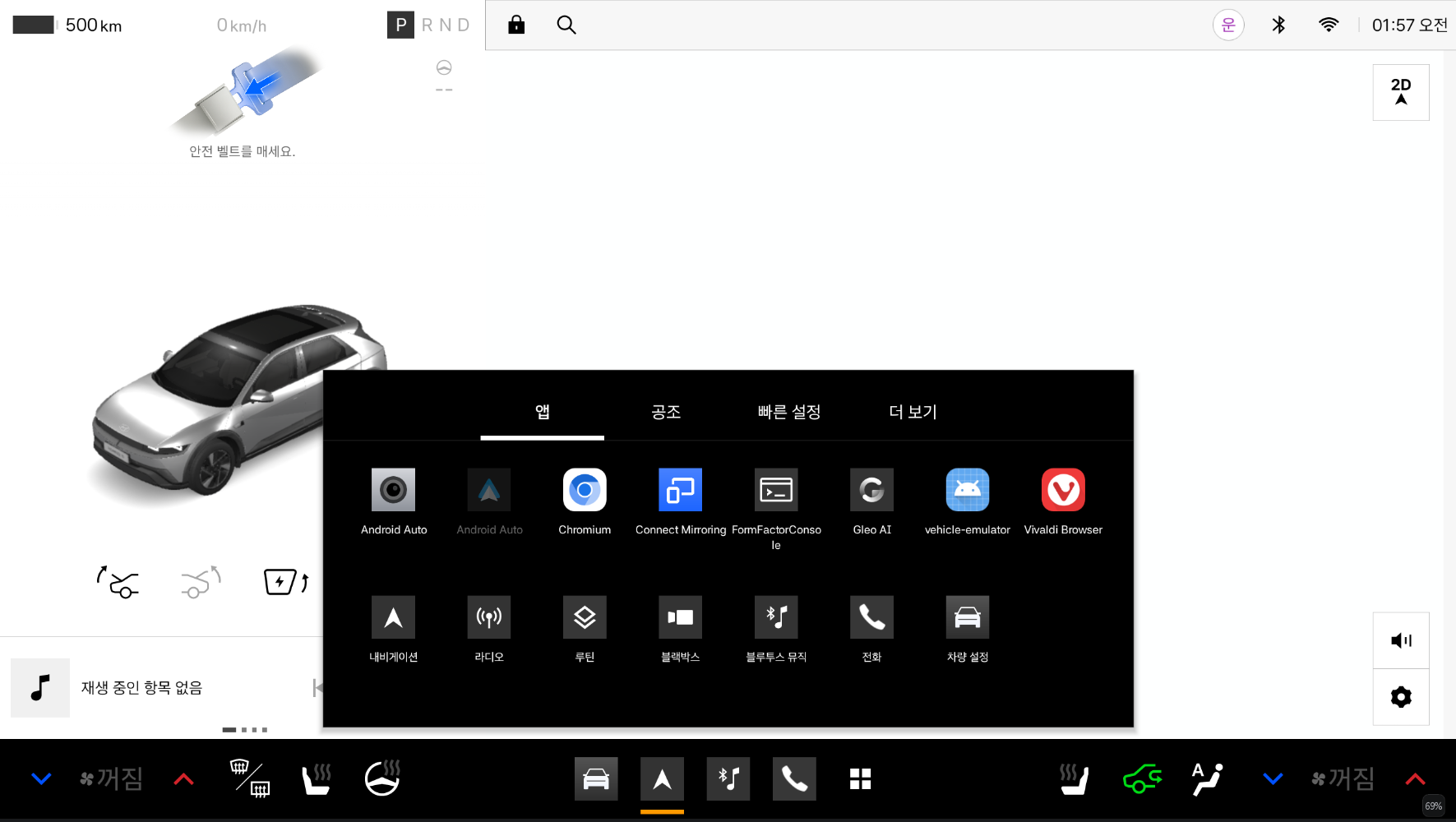
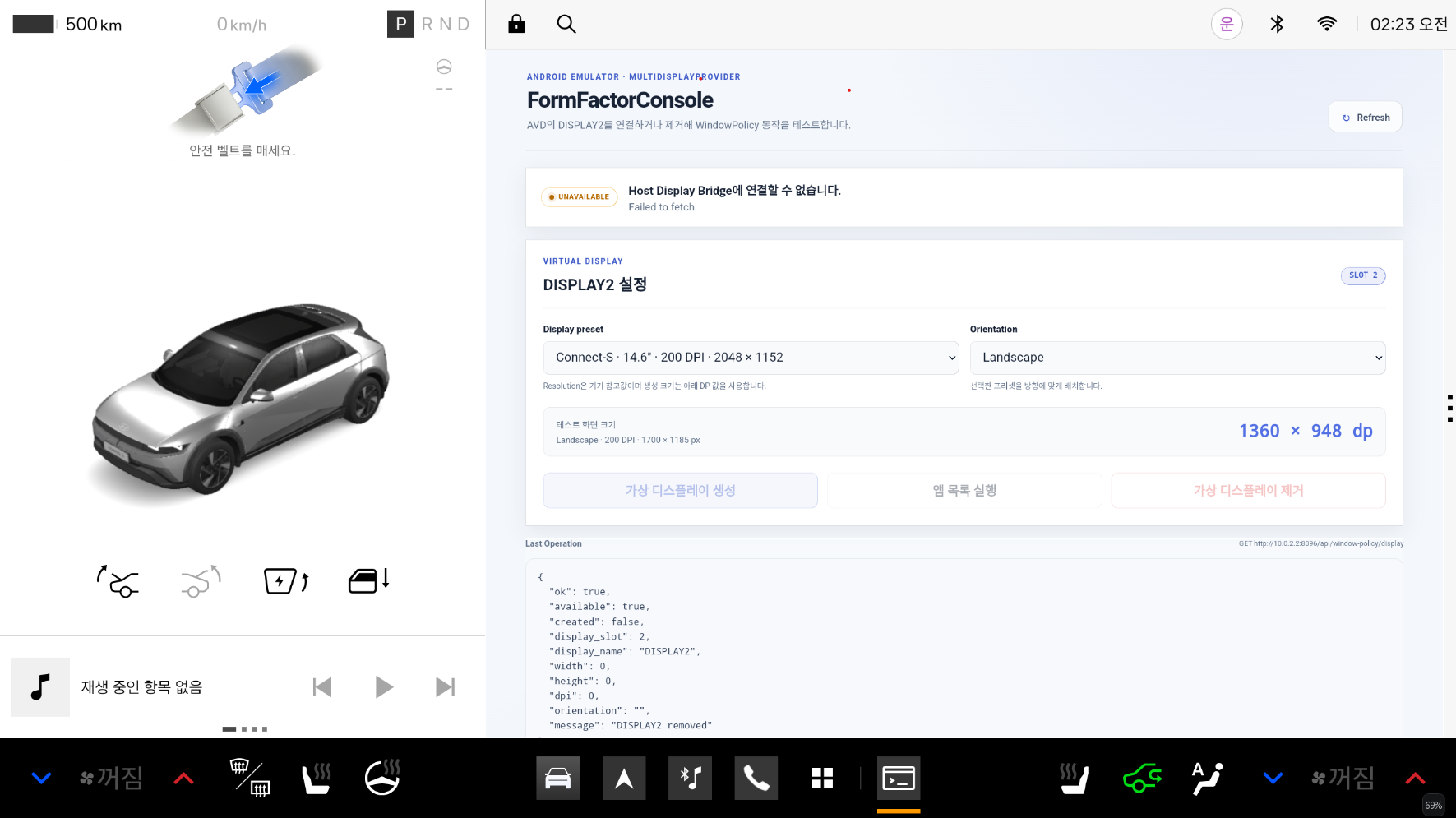
If UNAVAILABLE appears at the top of the page, verify that Host Display Bridge is running, then select Refresh.
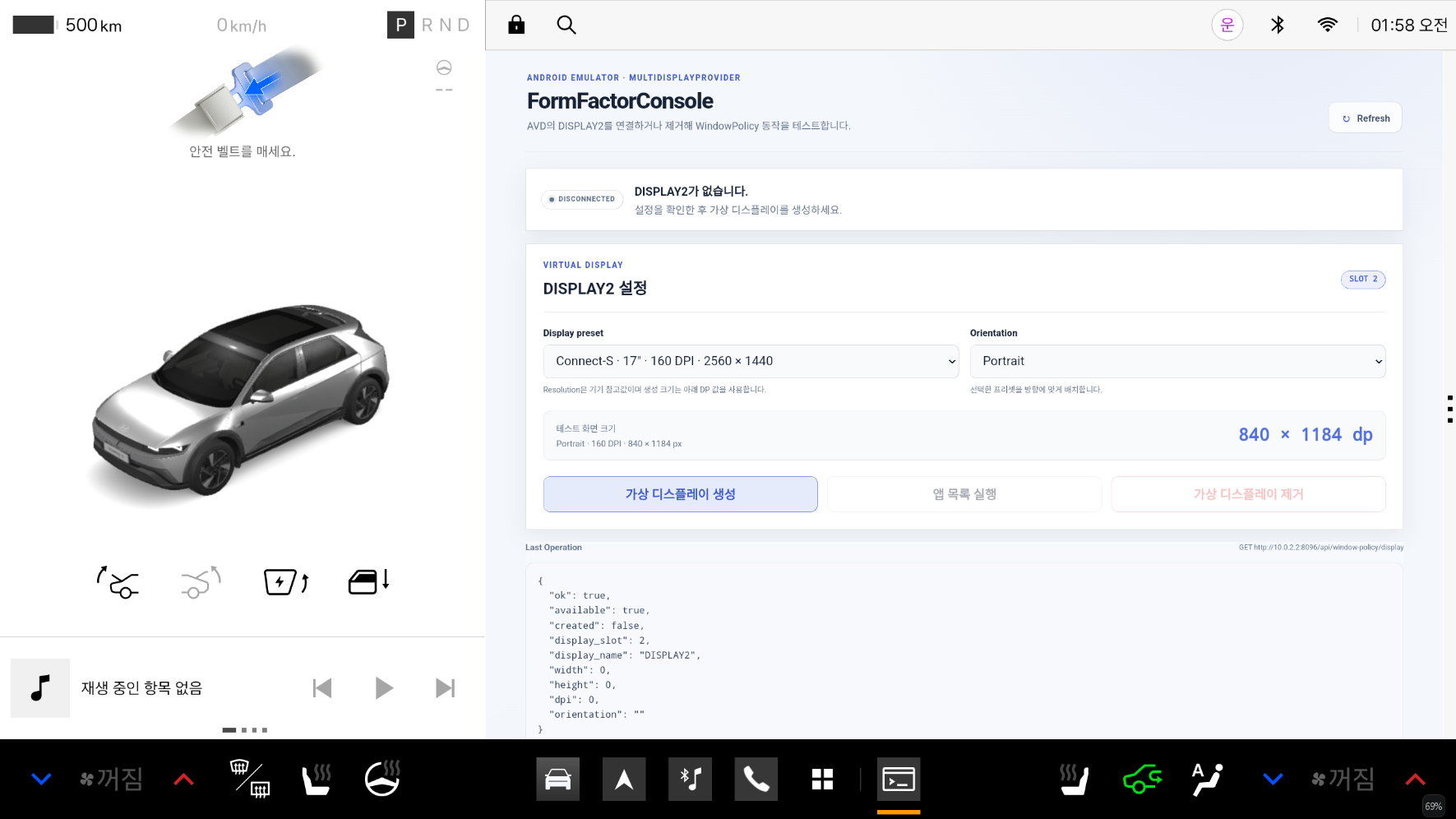
If DISCONNECTED and No DISPLAY2 appear at the top of the page, form factor testing is ready.
4. Run the form factor test
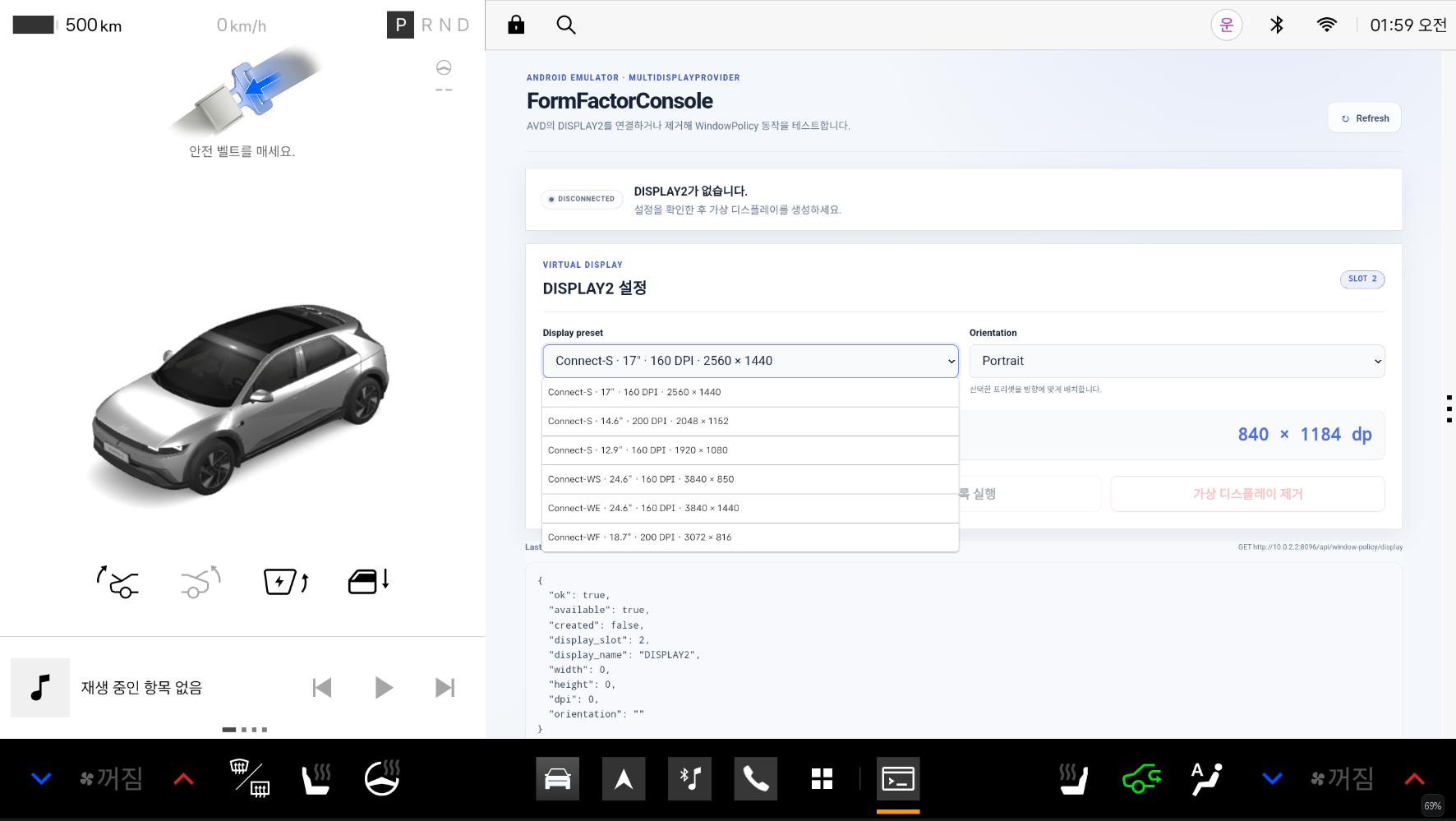
- In Display preset, select the form factor to test.
- In Orientation, select
PortraitorLandscape.
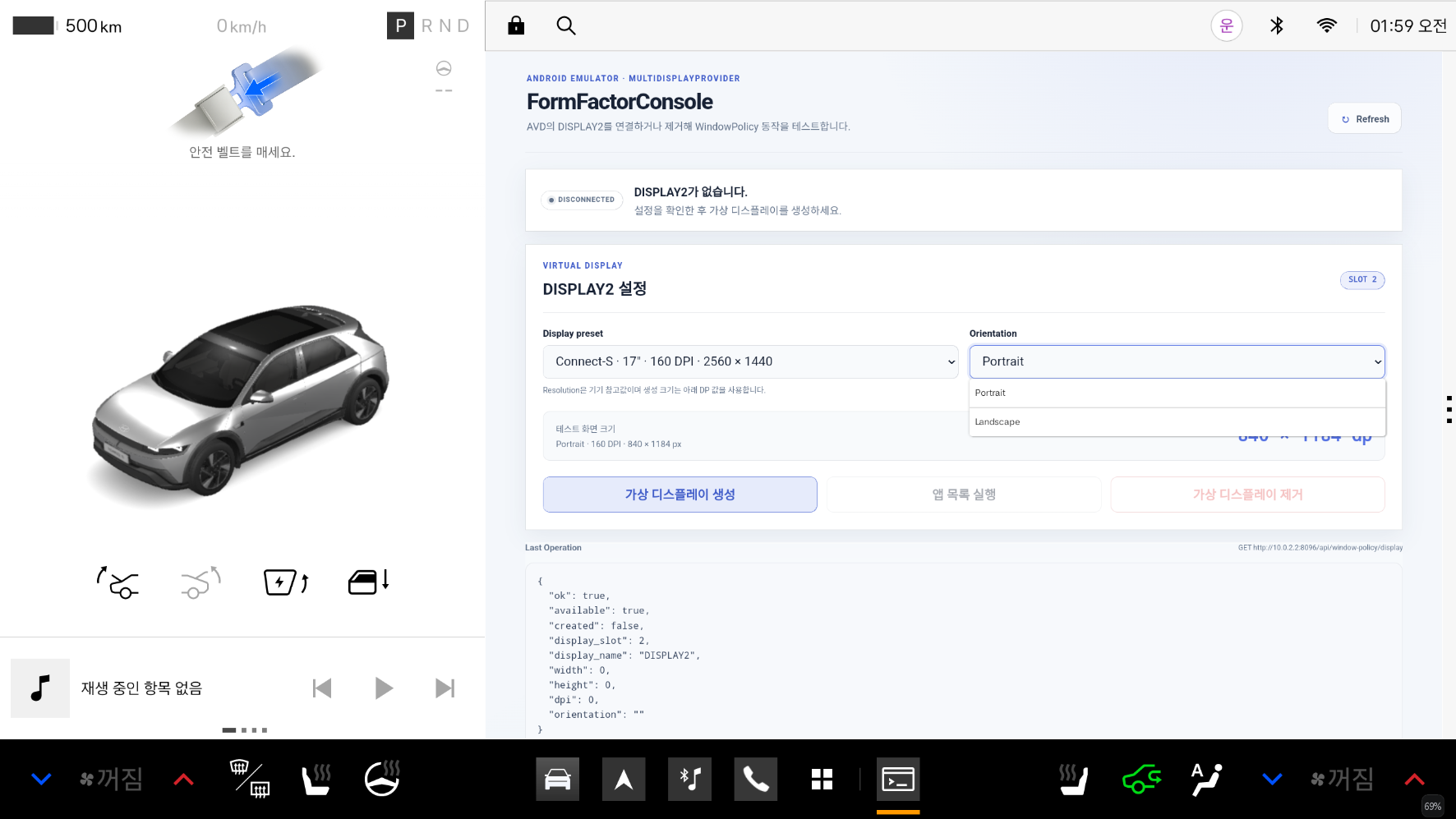
- Check the dp, DPI, and px values shown in Test screen size.
- Select Create virtual display.
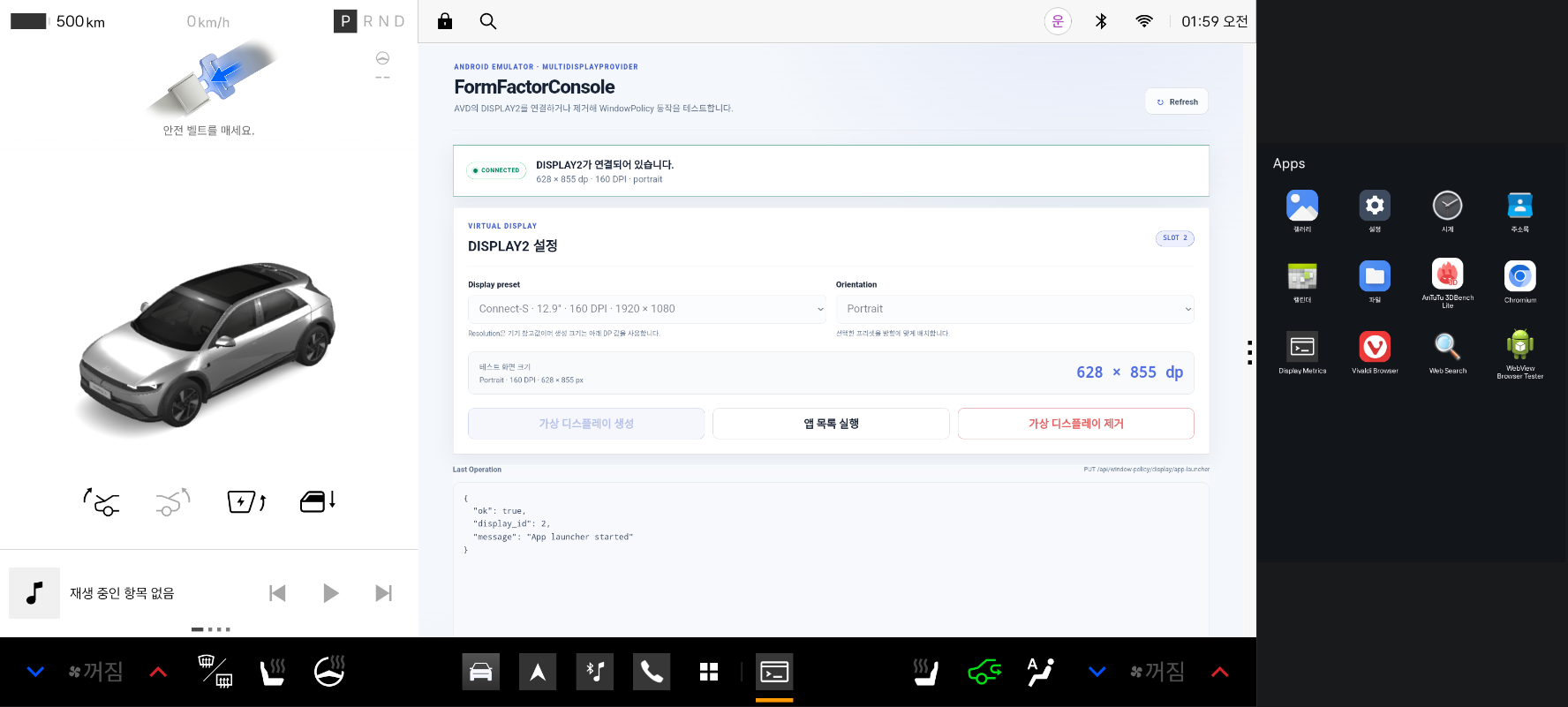
When a 12.9-inch Portrait virtual display is created, it appears as follows:
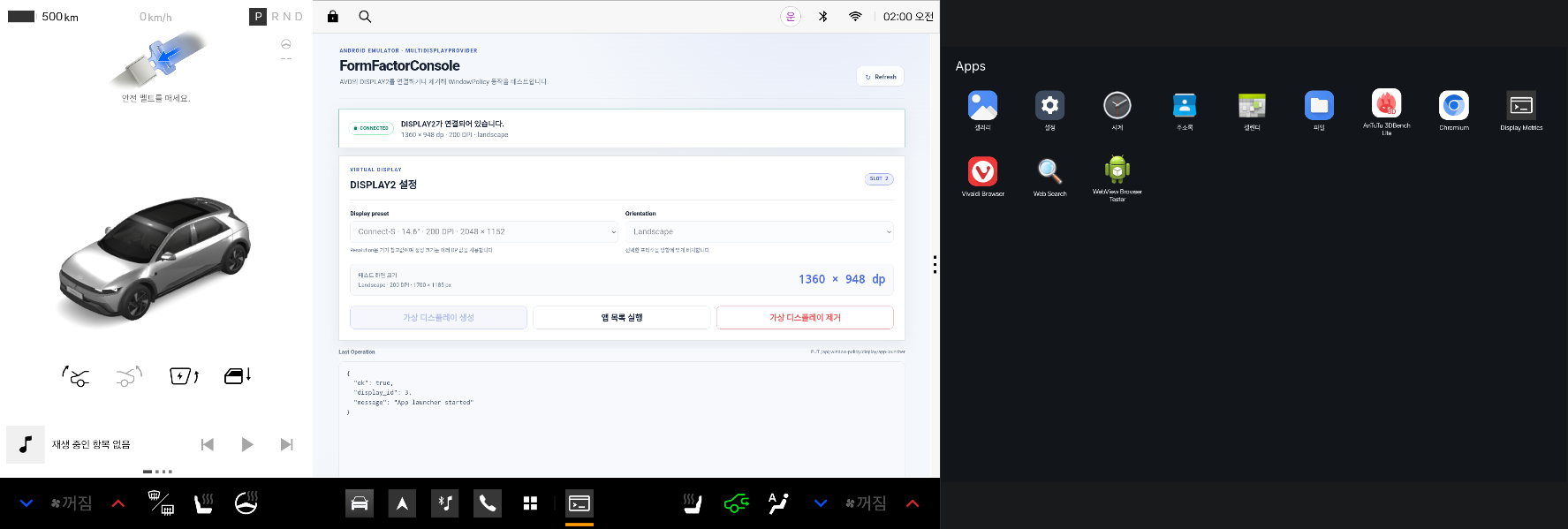
When a 14.6-inch Landscape virtual display is created, it appears as follows:
- In the newly opened
DISPLAY2window, check the app list. If the app list does not open automatically, select Open app list. - Verify the following:
- UI elements are not clipped or overlapping
- Text, images, and icon size/alignment are appropriate
- Layout adapts properly to portrait and landscape orientations
- Touch input and screen transitions work as expected
- To test another form factor, select Remove virtual display, then repeat steps 1-6.
Removing a virtual display force-stops apps running on that display. If you have unsaved test data, save it first.
Finish testing
- In FormFactorConsole, select Remove virtual display.
- In the terminal running Host Display Bridge, press
Ctrl+Cto stop it. - Remove ADB port forwarding.
adb forward --remove tcp:8095