Create a Project and Request SDK Access
To start developing a Pleos Connect app, sign up for Pleos Playground and create a project.
Sign up
Sign up for Pleos Playground. If you already have a Pleos Account, skip this step.
- Go to Pleos Playground.
- Select Login in the upper-right corner.
- Select Create a Pleos account at the bottom of the sign-in page.
- Agree to the Terms of Use and enter your account information.
- After signing up, sign in to Playground.
Create a project
Create a project for developing and registering your Pleos Connect app. After creating a project, you can manage your team, such as adding team members, and request SDK access.
- Sign in to Pleos Playground.
- In the top GNB, select Workspace > My Project.
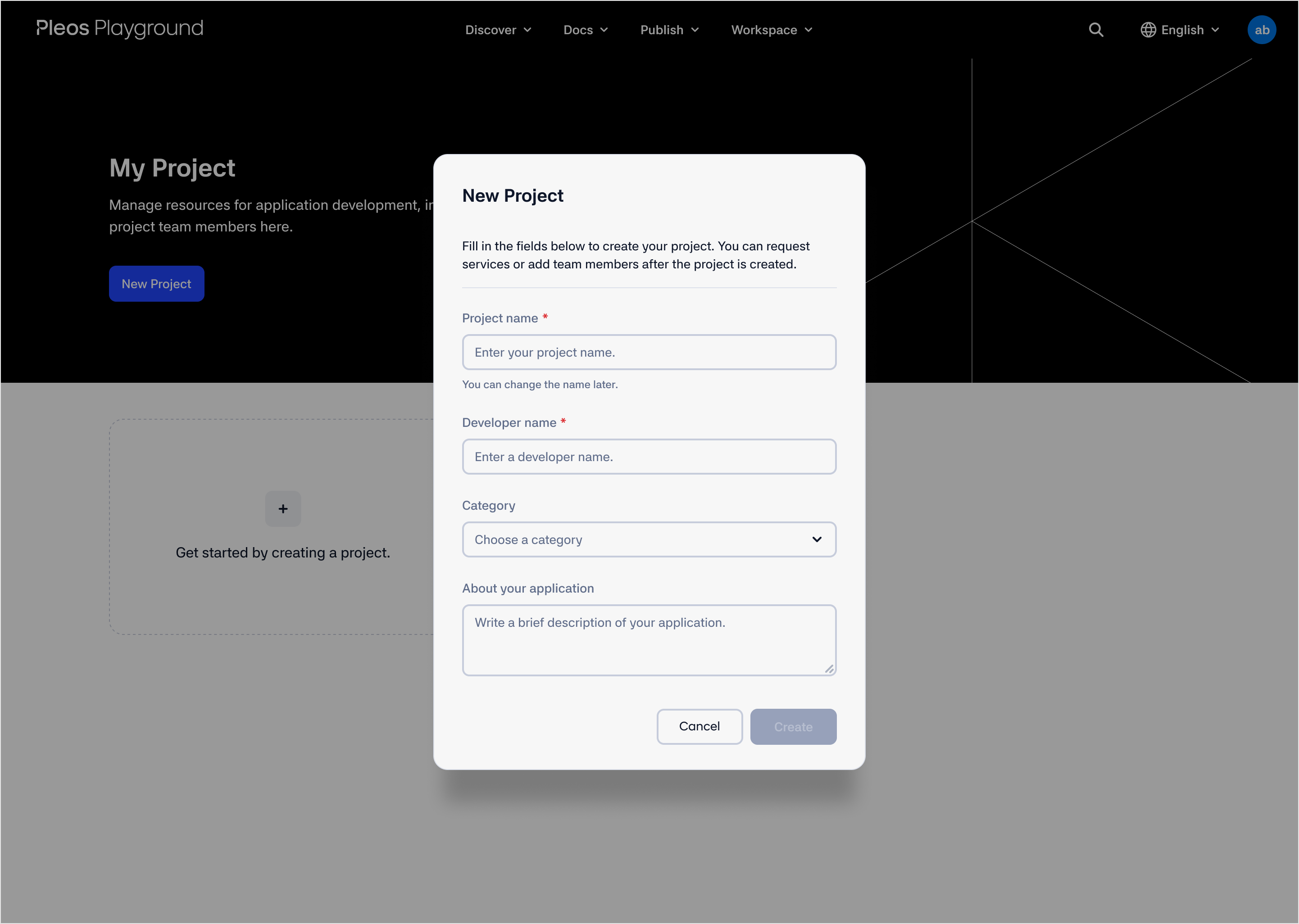
- Click New Project.
- On the New Project screen, enter the following information:
- Project name: Enter the name of your app or development project. You can change this value later.
- Developer name: Enter the name of your company.
- Category: Select the category of the app you are developing. Because the category is required during app development, we recommend defining it before you begin.
- About your application: Enter a brief description of the app you are developing.
- Click the Create button.
Check project information
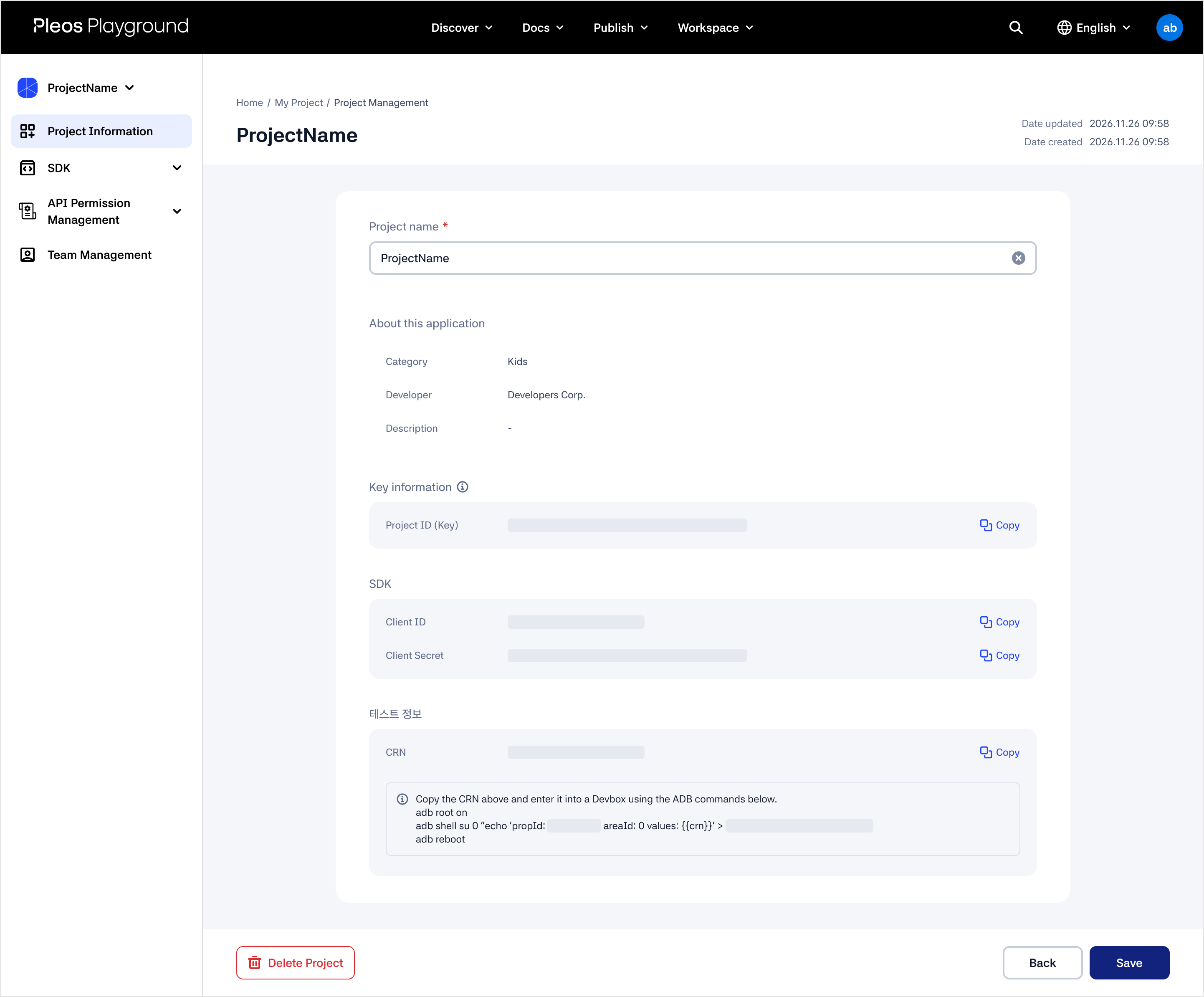
After creating a project, you can check the following information on the Project Information screen.
- Project name: Displays the Project name entered during project creation. You can edit it on this screen.
- About this application: Displays the information entered when creating the project.
- Key information > Project ID (Key): Enter this information in Pleos App Market Console when requesting an app review.
- SDK > Client ID: Required when using an SDK that requires a server connection, such as app registration. (TextToSpeech, SpeechToText)
- SDK > Client Secret: Required when using an SDK that requires a server connection, such as app registration. (TextToSpeech, SpeechToText)
- Test information > CRN: CRN is not required from Pleos Connect Emulator version 2.1.0 onward.
Request SDK access
Request access to the SDKs used in your project.
- Select SDK in the left sidebar of the Project Information screen.
- Select the SDK you want to use for app development from the expanded submenu.
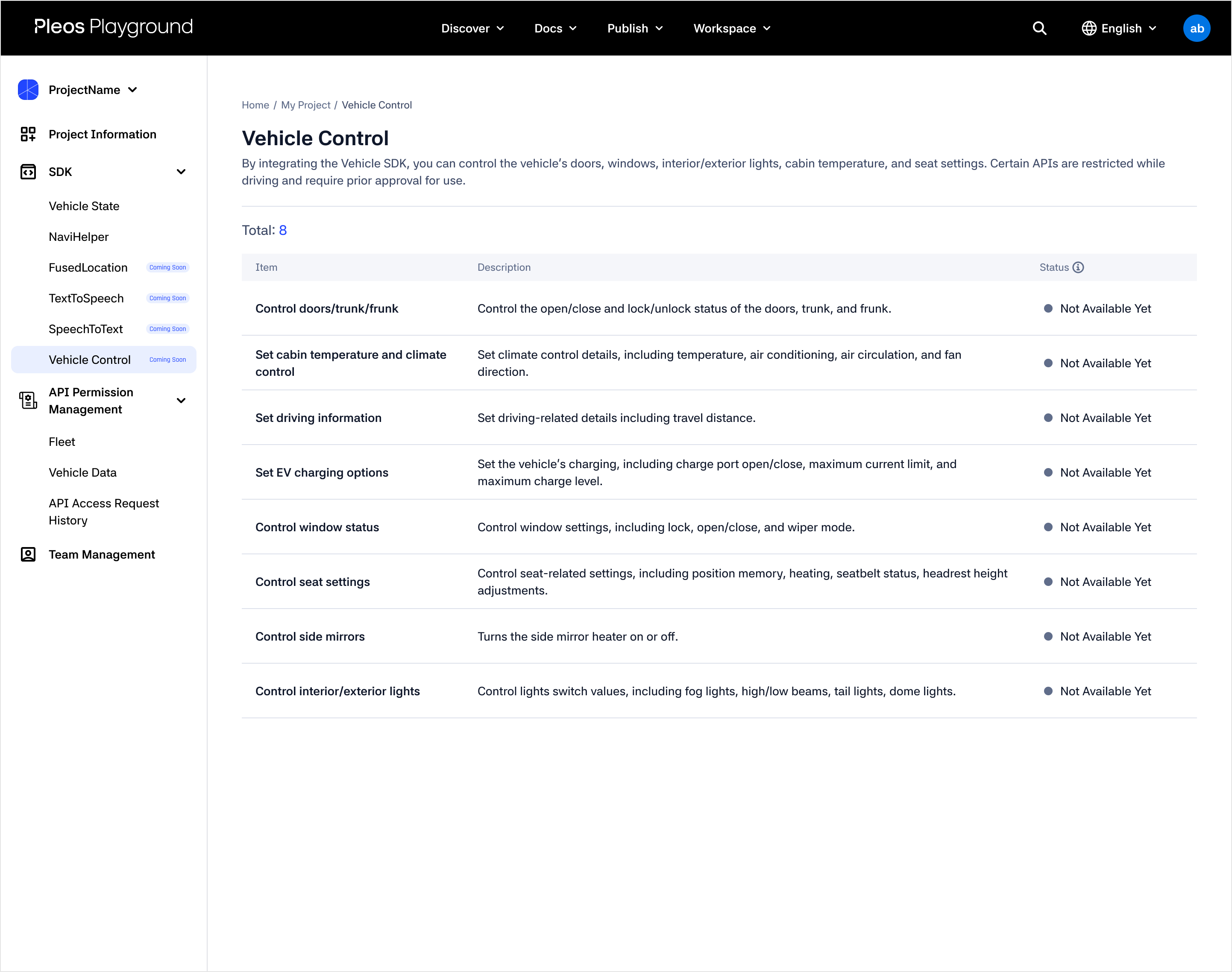
- Check the status of each feature on the SDK details screen.
- Not Available Yet status: The API is still being prepared, so the request button is not shown. A
Comming Soonbadge is displayed.- FusedLocation, TextToSpeech, SpeechToText, and Vehicle Control SDKs are in this status.
- Requests are not available in this status. Proceed after it changes to Request Required.
- Ready to Use status: The SDK is available without a request, or the request has been approved and the SDK is now available.
- Vehicle State and NaviHelper SDKs are in this status. You can use these SDKs immediately without submitting a request.
- Request Required status: A request is required to use the SDK, but no request has been submitted yet.
- Click Request to request access.
- For the request flow and status changes after submission, refer to steps 4-5 below.
- Enter the required information on the request screen and submit the request. Until the request is approved, it is marked with the Under Review status.
- Wait for approval. After approval, the feature is marked with the Ready to Use status and becomes available for app development. If your request is rejected, it is marked with the Rejected status.
Items marked with the Affiliation Required status do not support requests through the website. They are available only after completing an affiliation agreement. Contact the person responsible for service contracts for more information.
Next steps
After creating a project and requesting SDK access, proceed to Set up the development environment.