Vehicle SDK Sample App Guide
The Vehicle SDK Sample App is an Android example app for exploring vehicle features and learning how to use the Vehicle SDK. This guide assumes that you are running the Sample App on a dedicated Pleos Connect AVD.
Explore the Sample App Screens
The Sample App consists of a feature selection screen and a detail screen for using the selected feature.
Sample App Home Screen
When you launch the app, select a vehicle feature category on the left and find the feature you want to use on the right.
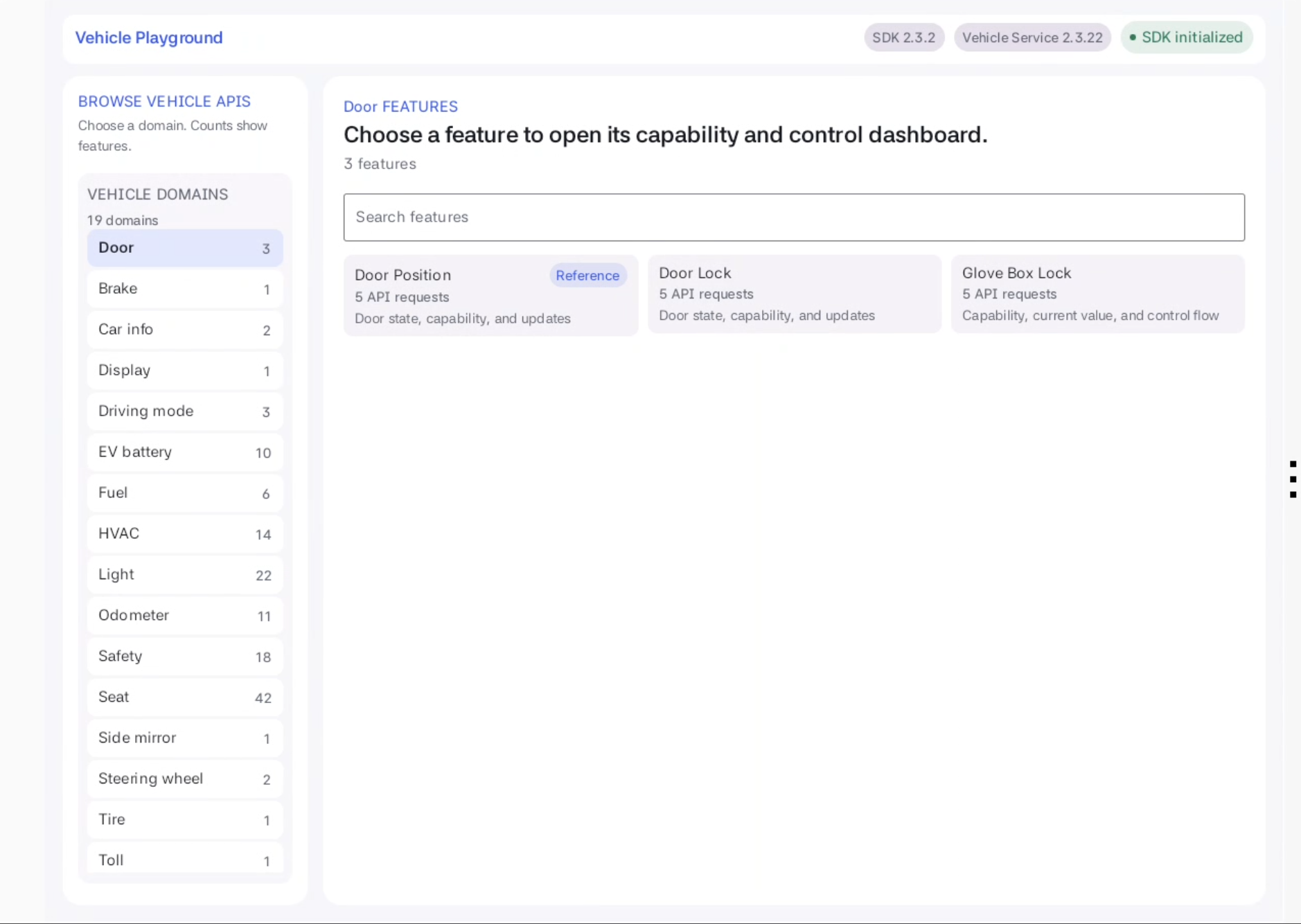
| Screen label | Purpose |
|---|---|
Vehicle Playground | The Sample App screen title. The SDK and Vehicle Service versions and SDK initialization status also appear at the top. |
BROWSE VEHICLE APIS / VEHICLE DOMAINS | Select a vehicle feature category, such as Door or Window. The number indicates how many features the category contains. |
Search features | Search for features within the selected category. |
Door Position | A feature card for reading or changing the door position. Select it to open the detail screen. |
SDK initialized at the top indicates that the SDK initialization call returned without an exception. This indicator alone does not confirm that the Vehicle Service connection is complete or that an individual feature is available.
Feature Detail Screen
Select Door Position to view support information, the current value, change requests, updates, and API results on one screen.
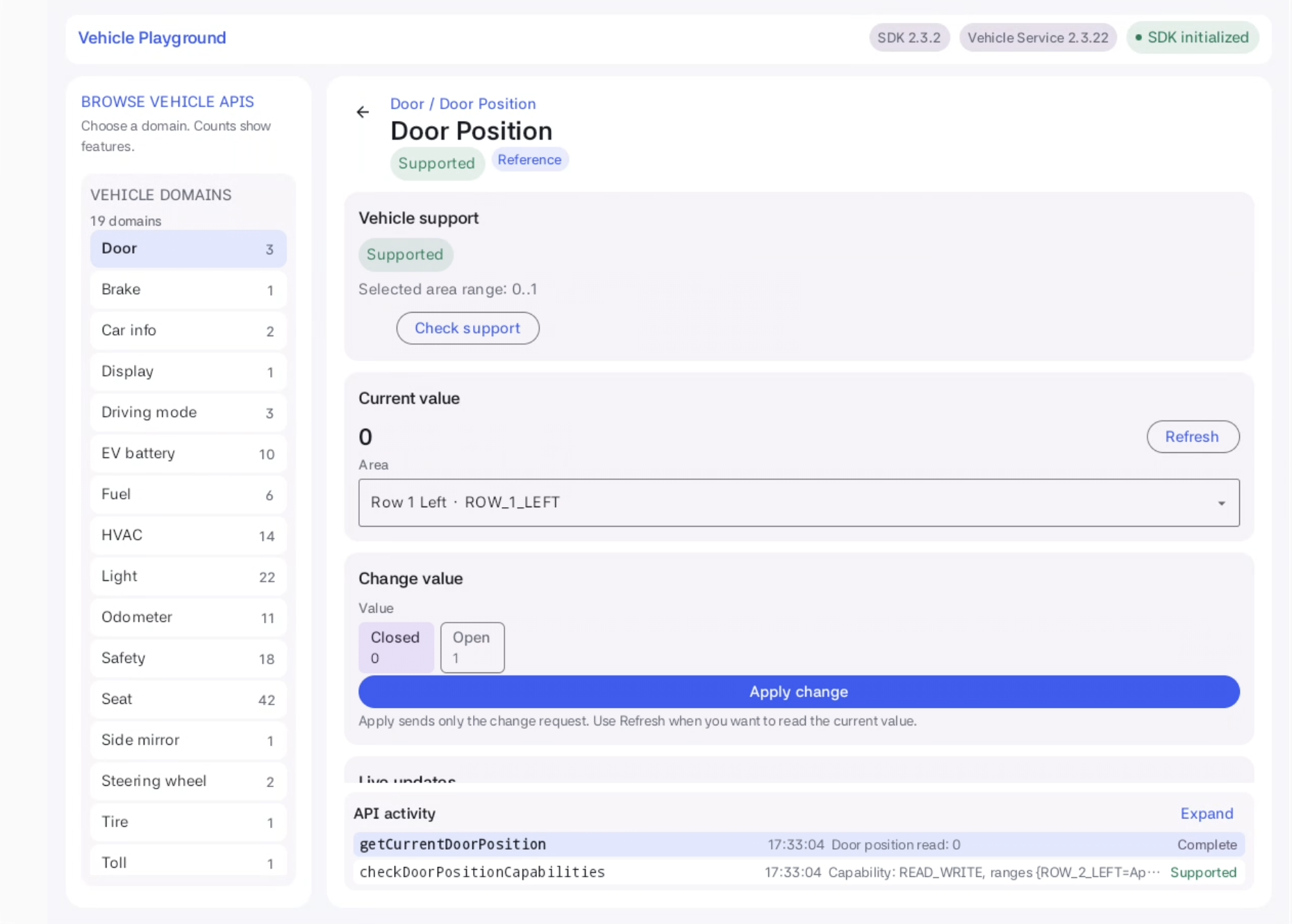
| Screen label | Main function |
|---|---|
Vehicle support | Shows feature support and the value range for the selected area. Select Check support to check again. |
Current value | Shows the last value received from a read or an update notification. Select the target area under Area and select Refresh to read it again. |
Change value | Specify the value to request. Selecting a value does not send a request; select Apply change to send it. |
Live updates | Manage update notifications. Select Start updates to subscribe and Stop updates to unsubscribe. |
API activity | Shows the APIs called and their latest results. Select Expand to expand the panel and Collapse to collapse it. |
| Left arrow button | Return to the feature list in the current category. This button does not unsubscribe from updates. |
Some features provide only a subset of read, write, and update subscription operations. Features without a write API do not show the Change value section. Depending on the value type and supported range, the screen shows selection buttons, switches, numeric inputs, or sliders.
Supported indicates feature support. Reference identifies a reference example that calls the SDK directly.
Overview and Learning Objectives
This guide is for developers who have experience building Android mobile or tablet apps and a working knowledge of Android, but are new to vehicle app development. You will run the Vehicle SDK Sample App on a dedicated Pleos Connect AVD, explore vehicle features such as Door Position, and learn the basics of integrating vehicle data with the Vehicle SDK.
Use the Sample App to check feature support and current values, request state changes, and subscribe to and unsubscribe from updates. This guide does not cover design guidelines, UI implementation, or general Android API integration. Use the Sample App workflow and reference example to apply the vehicle features you need to your own app.
| Term | Meaning |
|---|---|
| Domain | A category of vehicle features, such as Door or Window |
| Area | The target area to read or control, such as ROW_1_LEFT |
| Capability | Feature support, read/write access, and value ranges for each area |
| Read / Write | Retrieve the current state / Request a state change |
| Listener | An object that receives vehicle state update notifications |
Environment and Prerequisites
To integrate the SDK into your project, see the Vehicle SDK Integration Guide. After the walkthrough, use Apply This to Your App to find documentation for each development step.
Use a Dedicated AVD
Use a dedicated Pleos Connect AVD that includes Pleos Vehicle Service, not a standard Android phone or a standard emulator image. For installation instructions, see Pleos Connect Emulator Setup.
The screenshots in this guide were captured on the Pleos_Connect_v2.1 AVD (Android 14). Available features and value ranges may vary depending on what your AVD supports.
Sample App Release Baseline
The baseline for this guide is Vehicle SDK 2.3.2 and Vehicle Service 2.3.22.
| Item | Baseline |
|---|---|
| Sample App | 1.0.0-sdk35 |
| Vehicle SDK | 2.3.2 |
| Vehicle Service | 2.3.22 |
| AVD | Pleos_Connect_v2.1, Android 14 |
| JDK | 17 |
| Gradle wrapper | 8.10.2 |
| Android Gradle Plugin | 8.8.2 |
| Kotlin | 2.0.0 |
| Android SDK | compileSdk / targetSdk 35 |
| Sample App minSdk | 23 |
The versions displayed at the top identify the SDK used by the app and the installed Service. Version displays do not guarantee compatibility. Check API Compatibility & Availability together with the actual feature support results.
Install the Sample App on the dedicated AVD, then launch Vehicle SDK Sample from the launcher. To build it yourself, see Build and Install from Source below.
Build and Install from Source
When building from source, use a development environment that matches the Sample App release baseline above and the repository's Gradle wrapper. The Sample App manages the Vehicle SDK version in gradle/libs.versions.toml.
Build from the project root, then install the app on the running dedicated AVD.
./gradlew assembleDebug
./gradlew installDebug
The APK is generated in app/build/outputs/apk/debug/. After installation, launch Vehicle SDK Sample from the launcher.
When changing SDK versions, check that the public API count in PublicApiPolicyTest matches the SDK version in use. A test baseline left over from a previous version can cause the test to fail. This is separate from determining whether the app builds or connects to the Service successfully.
The Sample App itself has a minSdk of 23. Product apps distributed through Pleos Playground must separately meet the Android API 28 or higher requirement for signing key rotation and lineage support.
Learn the Workflow with Door Position
Reference Example
Door Position is a reference example that calls the Vehicle SDK directly to check support, read values, request changes, and subscribe to and unsubscribe from updates. Use this call flow as a reference when integrating the SDK into a product app.
Select Door in the category list on the left, then Door Position in the feature list. This example uses the same ROW_1_LEFT area for reads, changes, and update subscriptions.
Screen actions map to SDK APIs as follows. Check the result of each call in API activity.
| Action and screen section | Door Position typed API |
|---|---|
Check support — Vehicle support | checkDoorPositionCapabilities |
Read the current state — Current value | getCurrentDoorPosition |
Subscribe to updates — Live updates | registerDoorPosition |
Request a state change — Change value | setDoorPosition |
Unsubscribe from updates — Live updates | unregisterDoorPosition |
Check Support — Vehicle support
When you open the feature, the app checks support. If the check succeeds, it automatically reads the current value once.
Under Vehicle support, check the support status and Selected area range. The Door Position screenshot shows a range of 0..1. Do not assume that other environments use the same range; use the result for the currently selected area.
If the support check fails or the area's range is unknown, do not request a change. Check the error in API activity. Unsupported can indicate a failed support check as well as an unsupported feature. To check again, select Check support in this section.
Read the Current State — Current value
Confirm that Area under Current value is Row 1 Left · ROW_1_LEFT. The displayed value is the last value received from a read or an update notification.
To read another area or check the value again, select Refresh. You can also check the getCurrentDoorPosition response in API activity.
null or unavailable indicates that no usable current value was received. If there is an error message, distinguish it from a value simply being unavailable and see Troubleshooting.
Inspect Results — API activity
Actions performed in each section appear with their API names and results in API activity at the bottom of the screen. Select Expand to view long method names and responses.
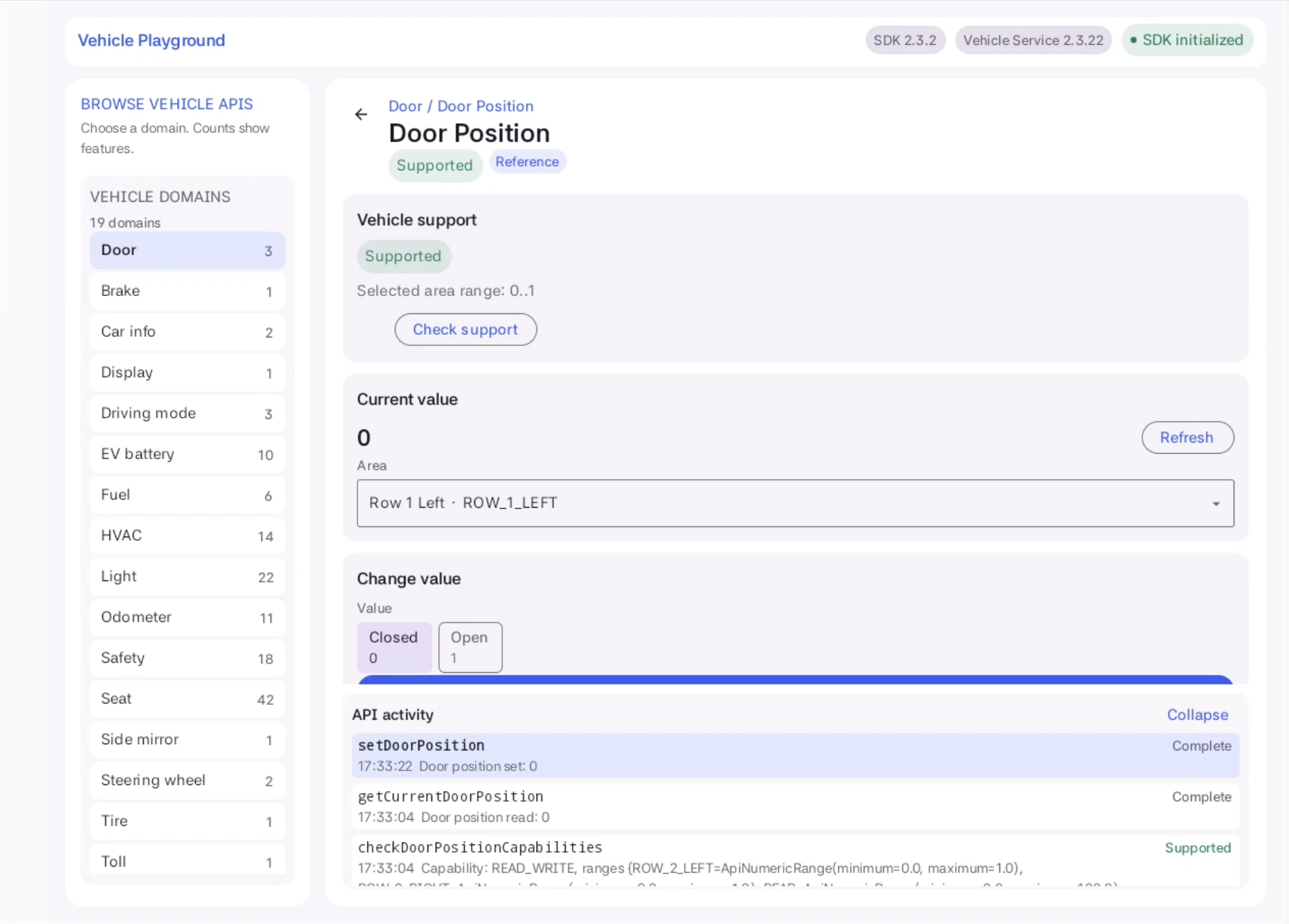
The meaning of Complete depends on the operation. For read and write requests, it means that a result callback was received. For Listener registration and unregistration, it means that the SDK call returned without an exception. Do not interpret the registration or unregistration indicator as a Service-side completion acknowledgment.
Subscribe to Updates — Live updates
Under Live updates, select Start updates. The app's subscription status changes to Receiving vehicle updates.
When an actual notification arrives, the registerDoorPosition response in API activity shows Door update: <value>, and the current value is updated. Distinguish the subscription status indicator from actual notification receipt.
Request a State Change — Change value
Under Vehicle support, check the supported range and write access for the selected area, then select the value to request under Change value. In the Door Position example with a range of 0..1, you can select Closed (0) or Open (1).
Selecting a value only prepares the input. Selecting Apply change sends the change request for the selected area. No separate confirmation dialog appears.
The setDoorPosition result in API activity is the completion callback for the change request. The value shown in this callback is the requested value, not a newly read vehicle state.
Verify the Change
Do not assume that the actual value changed just because the change request completed. Select Refresh under Current value to read it again, or check the value received in an update notification while subscribed.
The Sample App does not change the current value or automatically read it again merely because a change request completed. The current value is updated by read results or Listener notifications. If the requested and read values differ, note that difference rather than assuming the change took effect.
Unsubscribe from Updates
Clean up subscriptions in the following situations:
- When you finish checking updates for the feature
- Before switching the walkthrough to another feature or area
- When you finish using a screen or object that uses the SDK
In the Sample App, select Stop updates under Live updates with the originally registered area selected. Check Updates are stopped and the unregistration call result in API activity before returning to the list.
Returning with the left arrow or selecting another feature in the same category does not unsubscribe from updates. Changing only the Area selection does not unsubscribe either. If you request unregistration for an area other than the registered area, you may receive an error asking you to select the originally registered area.
Starting updates for another area with Start updates unregisters the existing Door Position subscription before registering the new area. Cleanup code also runs when you change categories or when the ViewModel is cleared, but explicitly unsubscribe when you finish each exercise.
Apply This to Your App
Apply the vehicle features you explored in the Sample App to your own app. Refer to the following documents for the development step you need.
| Development step | Documentation |
|---|---|
| Configure the Maven repository and add the SDK dependency | Vehicle SDK Integration Guide |
| Check API permissions and declare them in the manifest | Permission Declaration Guide |
| Initialize the SDK, obtain domain objects, and release resources | Obtaining a Domain Object |
| Check support and use read and write APIs | The Four API Types |
| Register and unregister update notifications | Callback Guide |
| Look up feature-specific API specifications | Vehicle SDK API Reference |
In a product app, call the typed APIs you need directly, as Door Position does, and declare only the minimum permissions required by those APIs. Do not copy the Sample App's shared feature explorer or its entire permission list. Unregister each Listener with the same object and area used for registration, and call Vehicle.release() to release resources when you finish using the SDK.
Troubleshooting
Use the method names and error messages in API activity to investigate the cause. Do not infer a permission issue, connection issue, or unsupported area from Unsupported or Failed alone.
Where to Check Permissions
Permissions are declared in app/src/main/AndroidManifest.xml in the Sample App project. Door Position support checks, reads, and Listener operations require CAR_DOORS; change requests require CONTROL_CAR_DOORS.
These permissions do not use runtime approval dialogs like standard Android dangerous permissions. Check the manifest declarations together with the feature's access type and area support. For declaration instructions, see the Permission Declaration Guide. For the Sample App's full list, see All Public Permissions in the Sample App.
| Symptom | What to check and do next |
|---|---|
Initialization failed or a Service connection error | Check the dedicated AVD and Vehicle Service installation. The SDK initialization indicator alone does not confirm a successful connection. |
Vehicle support is Unsupported | The feature may be unsupported, or the support check may have failed. Check the error in API activity, permissions, and connection status, then select Check support again. |
The current value is null or unavailable | No usable value was received. Check support and the selected area, then read again. Do not infer a missing permission from this indicator alone. |
Reading the current value is Failed | Check the read API error message, read permission, selected area, and Service status. |
| A change request is rejected or reports a range error | Check write permission, write access, and the selected area's value range. |
| The change request completes, but the read value differs | Request completion and actual state are different. Check the refreshed Current value and received update notifications. |
| No notifications arrive after subscribing | Check the registered area and error messages. Subscription status alone does not confirm notification receipt. |
| Unregistration reports a registered-area error | Select the originally registered area again, then select Stop updates. In product code, unregister with the same Listener and area used for registration. |
A Feature Is Supported, but Reading a Specific Area Fails
The following Door Lock screen shows a failed read for the selected ROW_1_LEFT area after the feature support check. The error includes area ID: 0x1 not supported. Distinguish overall feature support from availability for a specific area.
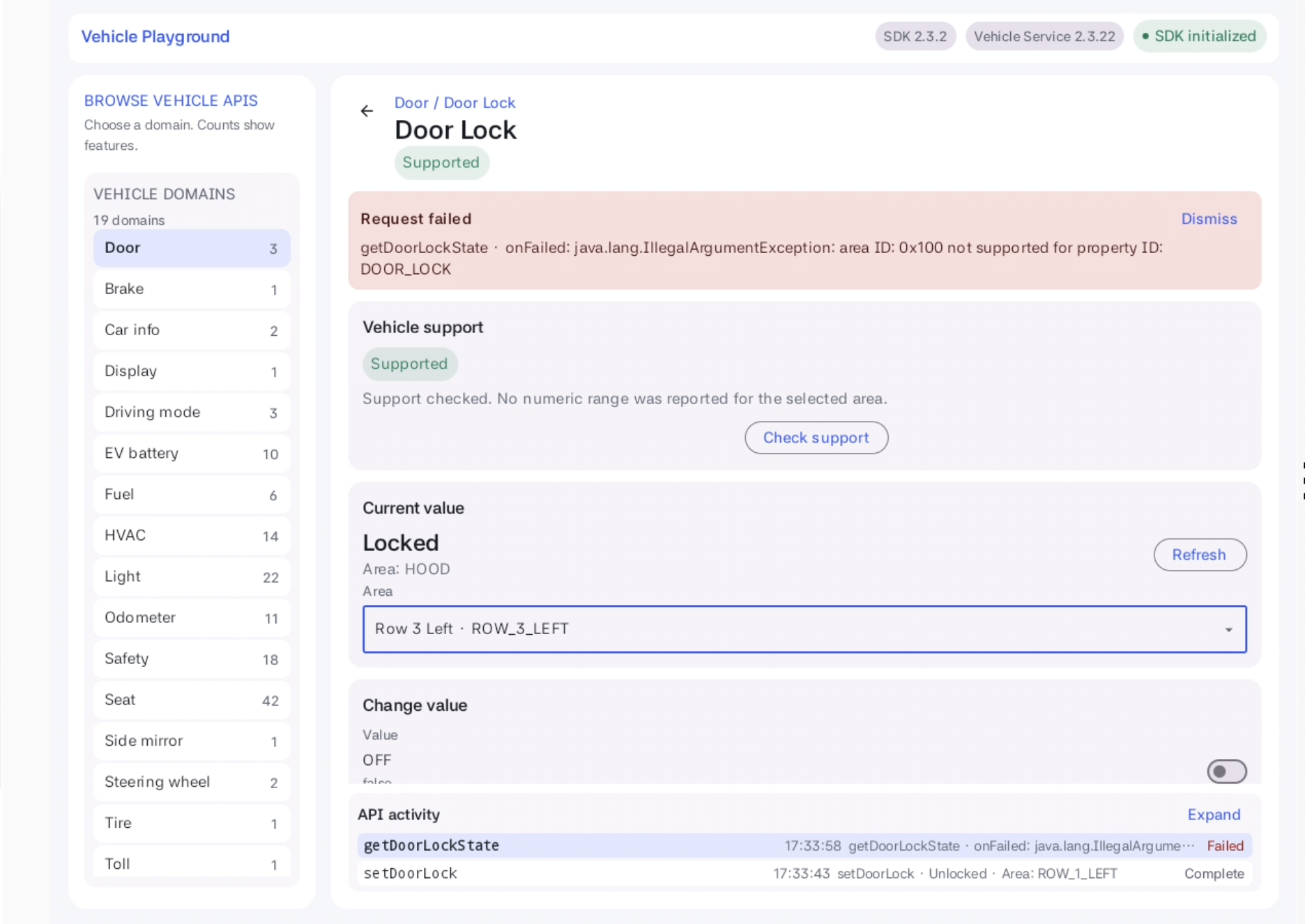
This image is not an example of a permission error or a successful read. The ON value under Change value is also a draft input, not the result of reading the current lock state.
Reference Material
All Public Permissions in the Sample App
The Sample App declares more permissions than the Door Position example because it provides multiple vehicle features. The following list is based on the Sample App manifest used for this guide.
View all public permissions
<!-- Read / state -->
<uses-permission android:name="pleos.car.permission.CAR_CLIMATE" />
<uses-permission android:name="pleos.car.permission.CAR_CONNECT_VENDOR_CONTROL" />
<uses-permission android:name="pleos.car.permission.CAR_DOORS" />
<uses-permission android:name="pleos.car.permission.CAR_DRIVE" />
<uses-permission android:name="pleos.car.permission.CAR_ENERGY" />
<uses-permission android:name="pleos.car.permission.CAR_INFO" />
<uses-permission android:name="pleos.car.permission.CAR_LIGHTS" />
<uses-permission android:name="pleos.car.permission.CAR_MILEAGE" />
<uses-permission android:name="pleos.car.permission.CAR_MIRRORS" />
<uses-permission android:name="pleos.car.permission.CAR_POWERTRAIN" />
<uses-permission android:name="pleos.car.permission.CAR_SAFETY" />
<uses-permission android:name="pleos.car.permission.CAR_SEATS" />
<uses-permission android:name="pleos.car.permission.CAR_SPEED" />
<uses-permission android:name="pleos.car.permission.CAR_TOLL" />
<uses-permission android:name="pleos.car.permission.CAR_TIRES" />
<uses-permission android:name="pleos.car.permission.CAR_WINDOWS" />

<!-- Control -->
<uses-permission android:name="pleos.car.permission.CONTROL_CAR_CLIMATE" />
<uses-permission android:name="pleos.car.permission.CONTROL_CAR_DOORS" />
<uses-permission android:name="pleos.car.permission.CONTROL_CAR_DRIVE" />
<uses-permission android:name="pleos.car.permission.CONTROL_CAR_ENERGY" />
<uses-permission android:name="pleos.car.permission.CONTROL_CAR_INFO" />
<uses-permission android:name="pleos.car.permission.CONTROL_CAR_LIGHTS" />
<uses-permission android:name="pleos.car.permission.CONTROL_CAR_MIRRORS" />
<uses-permission android:name="pleos.car.permission.CONTROL_CAR_SAFETY" />
<uses-permission android:name="pleos.car.permission.CONTROL_CAR_SEATS" />
<uses-permission android:name="pleos.car.permission.CONTROL_CAR_TOLL" />
<uses-permission android:name="pleos.car.permission.CONTROL_CAR_WINDOWS" />
<uses-permission android:name="pleos.car.permission.READ_CAR_DISPLAY_UNITS" />
<uses-permission android:name="pleos.car.permission.READ_CAR_STEERING" />
<uses-permission android:name="pleos.car.permission.READ_ADAS_STATES" />
<uses-permission android:name="pleos.car.permission.READ_WINDSHIELD_WIPERS" />
<uses-permission android:name="pleos.car.permission.CONTROL_WINDSHIELD_WIPERS" />
- This list reflects the current Sample App release manifest. For later releases, use that manifest as the source of truth.
- The example does not include
PRIVATE_*permissions. - In a product app, declare only the minimum permissions required by the typed APIs you use.