FAQ - Key ADB Command Usage for Debugging
Installing ADB
Expand installation steps
Mac
Install adb with Homebrew. If you install manually, you must configure environment variables yourself.
- Install Homebrew first.
/bin/bash -c "$(curl -fsSL https://raw.githubusercontent.com/Homebrew/install/HEAD/install.sh)"
- Install
adbwith Homebrew.
brew install android-platform-tools
- Verify the installation.
adb version
If adb is not recognized as a runnable program, check that the adb path is included in the PATH environment variable.
Windows
- Install
adbusing Chocolatey or Winget.
choco install adb
winget install Google.AndroidSDKPlatformTools
- Verify the installation.
adb version
Linux
Ubuntu / Debian family
- Install
adbwith the apt package manager.
sudo apt update
sudo apt install android-tools-adb android-tools-fastboot
- Verify the installation.
adb version
ADB connection and device check
This command lists attached devices. If no serial appears, try reconnecting.
adb devices
List of devices attached
emulator-5554	device
CCS connection
These commands link the device to the service. Use them to connect to Bluelink, Genesis Connected Services, and similar offerings.
The commands below are required to connect to the service on CCS vehicles. They are not supported on Devboxes or the Pleos Connect Emulator. Do not run them or use them for CCS connection testing in those environments.
adb shell settings put secure hmg_is_ccs_account_linked 1
adb shell settings put global hmg_provisioning_status 4
Screen capture
Captures a screenshot from the connected device. The file is saved on the desktop as screen_<timestamp>.png.
adb exec-out screencap -p > ~/Desktop/screen_$(date +"%Y%m%d_%H%M%S").png
Screen recording
Records the device screen while connected.
- Install a tool to package video (e.g. ffmpeg).
brew install ffmpeg
- Start recording
adb exec-out screenrecord --output-format=h264 - > ~/Desktop/screen.h264
-
Stop recording In the same terminal where recording is running, press
Ctrl+Cto stop. -
Convert format Repackage the H.264 stream into an MP4 container. After this step you can play the capture on your PC.
ffmpeg -framerate 60 -i ~/Desktop/screen.h264 -c copy ~/Desktop/screen_$(date +"%Y%m%d_%H%M%S").mp4
Install / run / stop / uninstall apps
Install an app
Installs the APK.
adb install -d -r [path-to-apk]
# adb install -d -r app-my-signed.apk
Options
-d: Allow version downgrade
-r: Remove local data
If the command above fails, try:
adb push [path-to-apk] /data/local/tmp/
adb shell pm install -d -r /data/local/tmp/[apk-file-name]

# adb push app-my-signed.apk /data/local/tmp/
# adb shell pm install -d -r /data/local/tmp/app-my-signed.apk
Launch an app
Find the package, then start the app.
adb shell pm list packages | grep [partial-package-name]
# adb shell pm list packages | grep radioline
adb shell monkey -p [package-name] -c android.intent.category.LAUNCHER 1
# adb shell monkey -p ai.umos.appmarket -c android.intent.category.LAUNCHER 1
- Behaves similarly to choosing the app from the Global Navigation Bar (GNB).
adb shell am start -n [package-name]/[activity-path]
# adb shell am start -n com.radioline.android.radioline/.MainActivity
Uninstall an app
Removes the app. After uninstalling, clear the package data if needed.
adb uninstall [package-name]
# adb uninstall ai.umos.appmarket
adb shell pm clear [package-name]
# adb shell pm clear ai.umos.appmarket
Force-stop an app
Force-stops the app process.
adb shell am force-stop [package-name]
# adb shell am force-stop ai.umos.appmarket
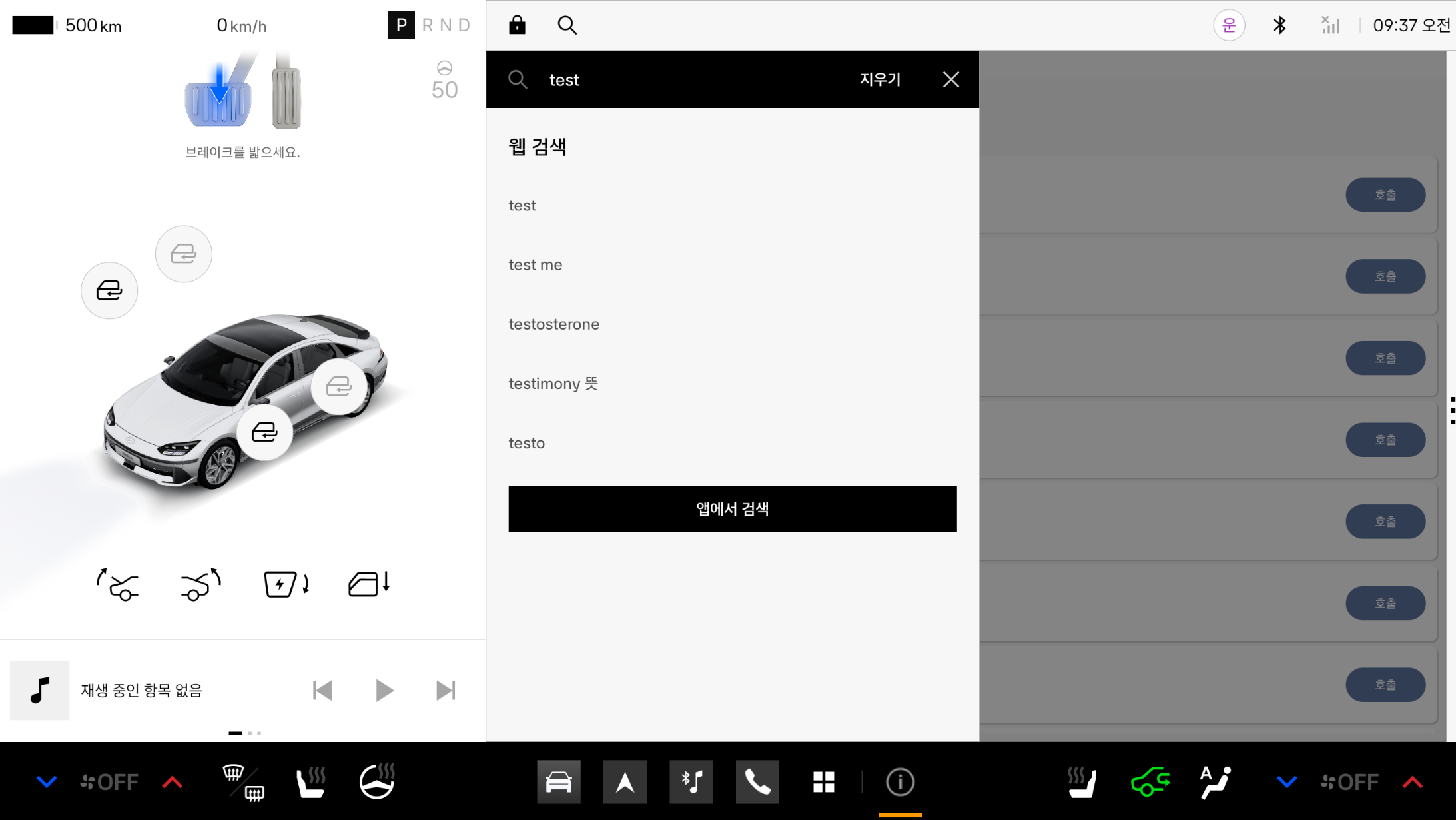
UI text input
Sends text into the focused field on the emulator or device.
adb shell input text "[text]"
# adb shell input text "test"
Change gear state
Change the gear mode in Pleos Connect Virtual Console.
For more information, refer to the Pleos Connect Virtual Console user guide.
Enable / disable driving restrictions
These are step-by-step commands to enable driving restrictions and to disable an enabled driving-restriction state.
This command is available across all vehicle models.
- Enable driving restrictions (ON)
adb shell cmd hmg_car_service --service drivingstate driving_regulation on
- Disable driving restrictions (OFF)
adb shell cmd hmg_car_service --service drivingstate driving_regulation off
Change mode
Switches to utility mode.
Run utility-mode commands only after establishing vehicle speed 0, parking brake on, and gear P.
adb shell echo -e -n "\x83\x50\x10\x00\x00\x02\xAA\x00\x00\x00\x00\x00\x00\x00\x00\x00\x00\x00\x00\x00\x00\x00\x00\x00\x00\x00\x00\x00\x00\x00\x00\x00\x00\x00\x00\x02\x00\x00\x00" > /dev/vcs_simulator_rx